
Shopify bulk edit customer locale: fix language after import
Shopify bulk edit customer locale is how you stop a multilingual store from emailing the wrong language. Locale on the customer record is the language preference Shopify uses for notifications and account mail. After a CSV import, a store move, or years of one-off admin clicks, that field is often empty, stuck on the store default, or set to a language the customer never picked.
Shopify’s built-in customer editor is a one-profile tool. Setting Dutch (`nl`) or English (`en`) on a few thousand accounts means opening each customer. This article covers why locale goes stale, the workarounds shops try, and how to filter the field in a spreadsheet, apply one value to the match, and save only after a preview. That workflow lives in OO - Bulk Customer Data Editor — listed as Free, with Customer Locale called out next to tax-exemption status.
Locale is operational, not decorative
Translated themes do not fix a wrong locale. If the customer record says English, English templates go out — even when the buyer checked out on a Dutch storefront. Support tickets sound like “your shop is broken.” The data is.
You see the same three patterns:
Import. Customers land from CSV. Locale is blank, or everyone inherits the shop default.
Migration. You match on email between stores. Language preference does not always follow the way you expect.
Legacy edits. Someone set English on the whole list once, or only VIPs ever got a locale.
Shopify will let you change language on a single customer. What it does not give you is a comfortable bulk path for this particular field. The app listing is explicit: edit fields the standard editor does not support well in bulk, including Customer Locale and tax-exemption status.
Do not claim Shopify’s native CSV “just sets locale correctly.” Do claim you can audit and correct locale in bulk *after* the import.
What merchants try instead
Open every profile
Customers → record → language → Save. Fine for a handful of wholesale accounts. Impossible as a weekly hygiene job.
Tags as a fake locale
You add `lang-nl` and hope a theme or Flow reads it. Tags are useful filters. They are not Customer Locale. Notification language follows the locale field.
Spreadsheet round-trips with no safety rail
Export, edit a locale column in Excel, re-import. That works when headers and matching are right. It bites when empty cells are treated as “clear this value,” or when one column rewrite stomps notes and tags. In Bulk Customer Editor, empty CSV cells do not clear existing values on update — which is what you want for a locale-only pass.
None of those paths is: filter empty or wrong locale → write one value onto the match → stage → save with preview.
A spreadsheet column Shopify already understands
OO - Bulk Customer Data Editor embeds a spreadsheet-style editor in admin. What the app covers: table edits (name, email, phone, tags, note, locale, tax exempt, and more), default address, marketing consent, store-defined customer metafields, filters, reusable views, CSV import/export (including Shopify’s customer CSV), segments. Listing extras: migrate customer data between stores; import/export fields Shopify leaves out; Excel and Google Sheets via CSV.
Locale is a dropdown, not a free-text cell
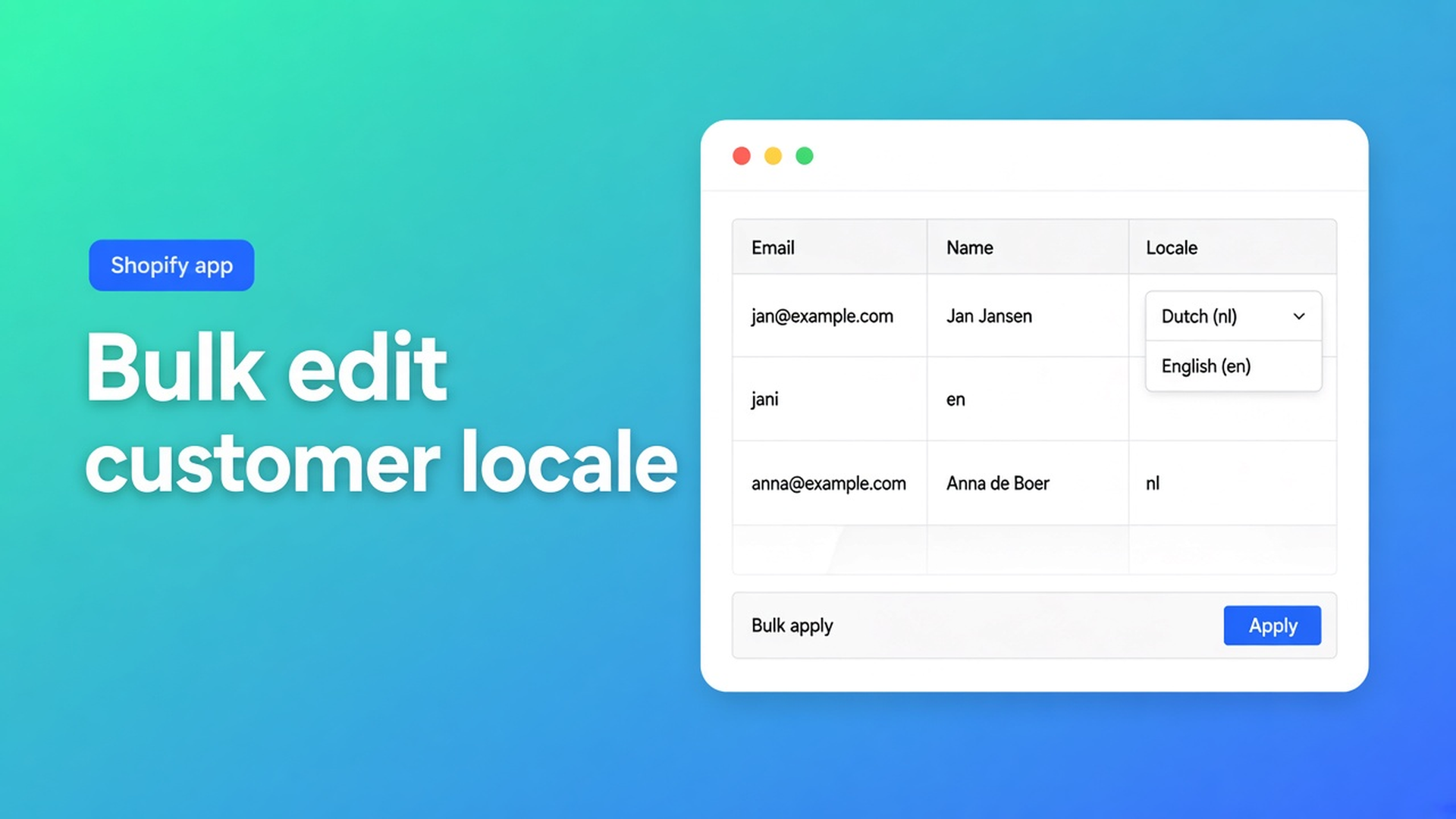
Edit customers in the spreadsheet: the Locale column is a dropdown of every locale Shopify supports — for example Dutch (`nl`) or English (`en`). You are not typing `dutch` and hoping it maps. You pick a valid locale, cell by cell or through bulk apply.
Same table, other editable fields: first/last name, email, phone, tags, note, tax exempt; email/SMS/WhatsApp marketing consent (Shopify opt-in rules still apply); default address; metafields defined on the shop (or already present on loaded customers). Display-only examples: total spent, order count, created date. Only changed fields are sent on Save. Failed rows surface Shopify’s error so you can fix the data.
Filter the whole list, not the current page
Columns, filters, and sorting: filters run across your entire customer list, combined with search and segment — not just the page you see. For locale, use a condition such as “is empty” or “is” plus the wrong value. Search (name, email, phone, tags) hits Shopify’s customer search. Locale is matched while scanning results. On a large store, pair a search or a segment with the locale filter.
Turn the Locale column on in the columns picker. Save the layout as a view if the team will rerun this.
Bulk apply one locale to the match
Apply a value to many customers:
Tick rows, or Select all matching — everyone who matches the current search, segment, and filters, up to 50,000 customers. Selection shows progress.
In the bulk edit bar, set Field to Locale.
Pick the Value (dropdowns appear for yes/no and select fields such as locale or marketing consent).
Apply to selected.
Review staged cells, then Save on the Shopify save bar.
Nothing writes to Shopify until you save. Select-all matching does not require every row on screen; it stages a large matching set, then you save with preview and progress. Large saves run in batches — keep the tab open. Closing it can interrupt the job. Saved changes are permanent. Discard drops unsaved edits.
That is Shopify bulk edit customer locale as an ops habit, not a weekend of profile-clicking.
Tax exemption uses the same bulk-apply pattern (the listing’s other highlight); this post stays on language.
Example: 4,000 buyers, locale blank after a move
Dutch-first shop, English market. After a migration, 4,000 customers have no locale — or English when they should get Dutch mail.
Open the editor: Apps → Bulk Customer Editor → Start editing, or Customers → More actions → Edit in bulk (docs). The app needs `read_customers` and `write_customers`. Staff with restricted customer permissions may not load data or segments.
Columns: Locale on, email and tags nearby.
Filters: Locale is empty (or Locale is English if that is the exact bad group).
Optional: a segment or search so you do not overwrite an export market that should stay English.
Select all matching. Stay under 50,000; split filters if you must.
Bulk apply Locale = Dutch (`nl`). Read the staged cells.
Save, confirm the preview, leave the tab open until progress finishes.
Spot-check profiles. Failed rows: Shopify’s message, fix, retry the rest (FAQ).
Repeat with Locale = English (`en`) for the other market. Same editor, second filter, second apply.
Get it running
Quick start: open the app, enter the editor, search/filter, edit cells (changed cells stay marked until save), use the Shopify save bar with preview. After save, confirm a few customer profiles.
Install from the Bulk Customer Data Editor listing. The listing: bulk-edit, import, and export; Customer Locale and tax-exemption status; filters, reusable views, segments; store-to-store migration; fields the standard editor skips. Category: bulk editor. CSV import/export and metafields when they exist on the shop. Support chat and docs sit on the dashboard.
First job: locale only. Do not “also flip” marketing consent — subscribed states need a valid opt-in. Do not blank metafields. A later CSV that only fills locale will leave other values alone because empty cells are not clears.
Wrap-up
Locale is a small admin field with a large inbox cost. Shopify bulk edit customer locale means using Shopify’s own locale list (Dutch `nl`, English `en`, and the rest), filtering empty or wrong values, selecting up to 50,000 matches, staging the dropdown, and saving with the tab open.
This is not “Shopify cannot set language.” Shopify can, one customer at a time. The editor turns the field the standard UI makes painful in bulk — Customer Locale — into one column and one bulk apply.
Save a “Locale empty” view, run Dutch or English, check ten profiles. After that it is hygiene, not a migration fire drill.
Install OO - Bulk Customer Data Editor (Free) and set customer language in a single save.

The Shopify Select partner for ambitious e-commerce businesses that want to grow!


Services
Reviews
5/5
Mail: info@onlineorigins.nl
Tel: 073 234 0612
KVK: 89825624
BTW: NL865123639B01
Bruistensingel 500,5232 AH 's-Hertogenbosch Cookies
© 2026 Online Origins