
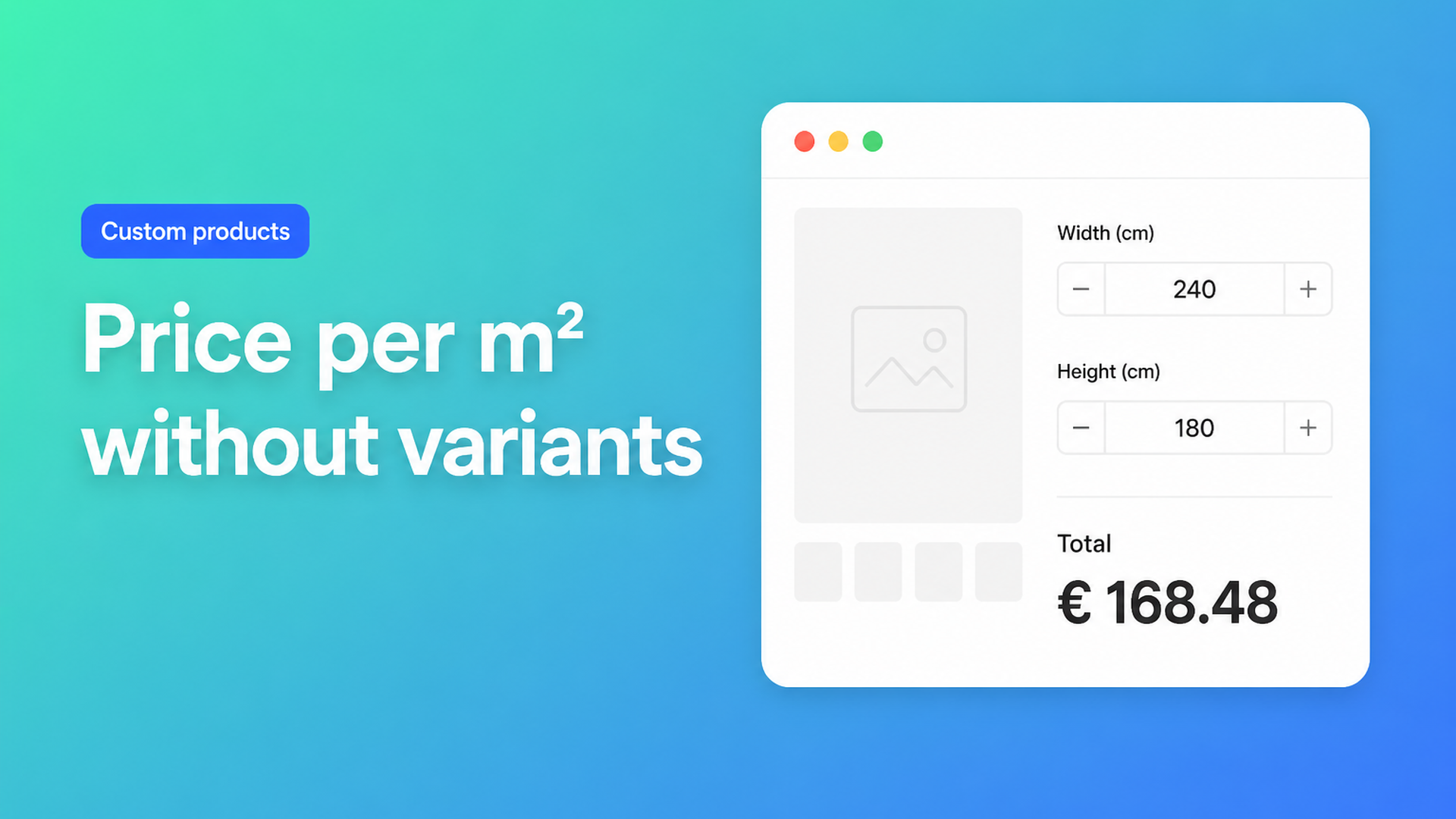
Shopify price per square meter without a variant grid
Shopify price per square meter is a one-line equation in a workshop: width × height × rate. In Shopify admin it is a catalog problem. Variants are named SKUs — 80×120, 90×200 — not a continuous surface. A customer who needs 187 cm by 243 cm will not find that cell, and you should not invent a SKU for every centimetre.
This article is for merchants who sell flooring, wallpaper, window film, banners, or fabric by area. You will see why a price grid as variants collapses, why theme line-item fields do not change checkout, and how Options Price Calculator puts two number fields and a live formula on the product page. Shoppers watch the total update; you keep one SKU, or a handful of real stocked variants.
Area pricing is not a variant feature
Shopify Help Adding variants is unambiguous: a product may have at most three options and at most 2048 variants. The variant cap moved from 100 to 2048 in October 2025 (changelog). That helps if you actually warehouse 40 lengths × 50 colours. It does nothing for a rate per square metre.
Take rubber flooring. Customers order any rectangle between 50 cm and 400 cm. Even 10 cm steps are 36 × 36 = 1,296 variants — sizes only, before colour or thickness. Add those and you hit both the option ceiling and a maintenance wall. Nobody bins 187×243 in the warehouse. Feeds, discounts, and inventory reports become noise.
Variants model stocked combinations. A square-metre price is a function of two continuous numbers. Those are different product models.
Merchants keep asking for the function. In Is there a way to have a product which price is based on the area? the request is a base price plus an amount per m², with Markets and tax still correct. Replies talk about stepped variants, treating quantity as the measurement, or custom apps — not a native area formula. How to Create Customized Size in product variant shows the Liquid path: an input becomes a line item property. Fulfilment can read the centimetres. Checkout still uses the variant price.
Workarounds that stall
A matrix of sized variants
Every cell (120×180, 130×180, …) is a variant with a hand-typed price. It works until someone needs a size between cells, until you change the rate (then you edit hundreds of rows), or until a shopper picks the wrong row. That is a spreadsheet wearing a dropdown.
Quantity stands in for square metres
You set the product price to $45 and tell customers that “quantity” means m². Three units become $135. It breaks on 2.4 m², on a hem or setup fee, and on inventory: stock drops by “3 items” when you cut one sheet. Half metres become guesswork.
Line item properties with no price hook
`<input name="properties[Width]">` is cheap and visible on the order. The paid amount does not move. An 0.8 m² offcut and a 6 m² run cost the same unless an app or a Shopify Function sits beside the theme. That is why custom-size threads never close.
Email quotes
The customer sends measurements, you open a spreadsheet, you raise a draft order. Fine for one-off projects. On a product page it kills conversion: there is no price, and the cart stays empty.
Width × height × rate on the product page
Options Price Calculator is built for this split: unlimited fields on the product page, a formula that updates the price in real time, no extra variant per centimetre. It is Built for Shopify (listing: 5.0 from 22 reviews) and installs as a theme app extension — typically under the price, above Add to cart.
The docs open with a Price per square meter recipe in Pricing / Formula Examples: two number inputs (`width`, `height`) and
``` product_price + (width * height) ```
That is the canonical starting point. Most shops want a rate per m² and inputs in centimetres. The Number Input article uses `Width (cm)` as the example label and tells you to set a minimum and maximum (10–300) so impossible sizes cannot reach the cart. Mark the fields required. Leave negative values off.
Two setups that stay readable:
1. Inputs in metres, product price is the rate
``` product_price * width * height ```
A $42.00 product at 2.4 m × 1.8 m is $181.44.
2. Inputs in cm, area as a computed property
In the formula step, add a computed property “Surface area m2” with `width * height / 10000`. Computed properties exist for exactly this: define area once, reuse it. Main formula with a 45 rate and a 25 setup:
``` product_price + _cv_surface_area_m2 * 45 + 25 ```
Keep `product_price` as a base (or zero) and put the rate in the formula — or in a numeric metafield if one calculator should serve many SKUs. `Math.ceil` and `Math.round` belong at the end; the Formula Builder says to round last.
Need a material multiplier? Give dropdown options numeric values (`1`, `1.2`, `1.5`) and multiply, as in docs example 3: `product_price * material_type`. Stocked collections (rubber vs. vinyl) stay real Shopify variants. Each can have its own calculator, or the same block reading a different metafield rate.
Thresholds — a higher rate above 200 cm, or a floor of $100 — are Premium conditional formulas. See Conditional Pricing. Do not present them as free.
Yesterday we covered Shopify more than 3 product options. This piece is the calculation you still need after that limit: area × rate.
Example: a custom banner at $28 / m²
You print mesh banners to size. Admin holds one variant, or three if you stock mesh / vinyl / fabric as real SKUs. On the page:
Width (cm) — number, required, min 50, max 500, default 200.
Height (cm) — number, required, min 50, max 300, default 100.
Hem — checkbox with numeric value 12 (or 0 when unchecked).
Computed property `area` = `width * height / 10000`.
Formula: `product_price + area * 28 + hem`.
A shopper types 320 × 160. Area is 5.12 m². Total $143.36 plus the hem if they tick it. No 1,000-row size list, no quote email. Width, height, and — if you enable “show as product attribute” — the computed m² travel with the order, so the print queue sees the same numbers as checkout.
The same skeleton covers window film, wallpaper rolls (area plus a waste factor: `area * 1.08 * rate`), or sheet goods. Server-side price validation in app-wide settings means the amount is not only a browser display.
What you need to go live
Install Options Price Calculator. The free plan includes 20 uses (always free on a Develop plan store). Starter ($9.99/mo) covers unlimited options, the formula builder, and metafields. Premium ($14.99/mo) adds conditional logic, live preview, and a real-time price breakdown.
Add the app block on the product template — How to Add the Extension to the Product Page: under the price, above Add to cart, then Save.
Create number fields with stable keys (`width`, `height`), units in the label, min/max, no negatives.
Build the formula (or a computed property for m²) and test preview values: 100×100 cm must be 1 m², not 10,000.
Link the calculator to the right variant(s). Stocked attributes stay Shopify variants; the measurement does not.
Keep native variants for what you warehouse. Anything that is a function of centimetres belongs in the calculator.
Wrap-up
Shopify price per square meter is not an option named “Area”. Three options and 2,048 SKUs do not implement a continuous rate. A size grid and a quantity trick do not either. Two numbers, a surface-area variable, and `rate × m²` on the product page do.
Put that equation on the product page with Options Price Calculator and let customers size the banner, floor, or film instead of waiting on a quote.

Custom webshops, websites, and applications combined with smart online marketing to help your business grow online!


Reviews
5/5
Mail: info@onlineorigins.nl
Tel: 073 234 0612
KVK: 89825624
BTW: NL865123639B01
Bruistensingel 500,5232 AH 's-Hertogenbosch Cookies
© 2026 Online Origins