
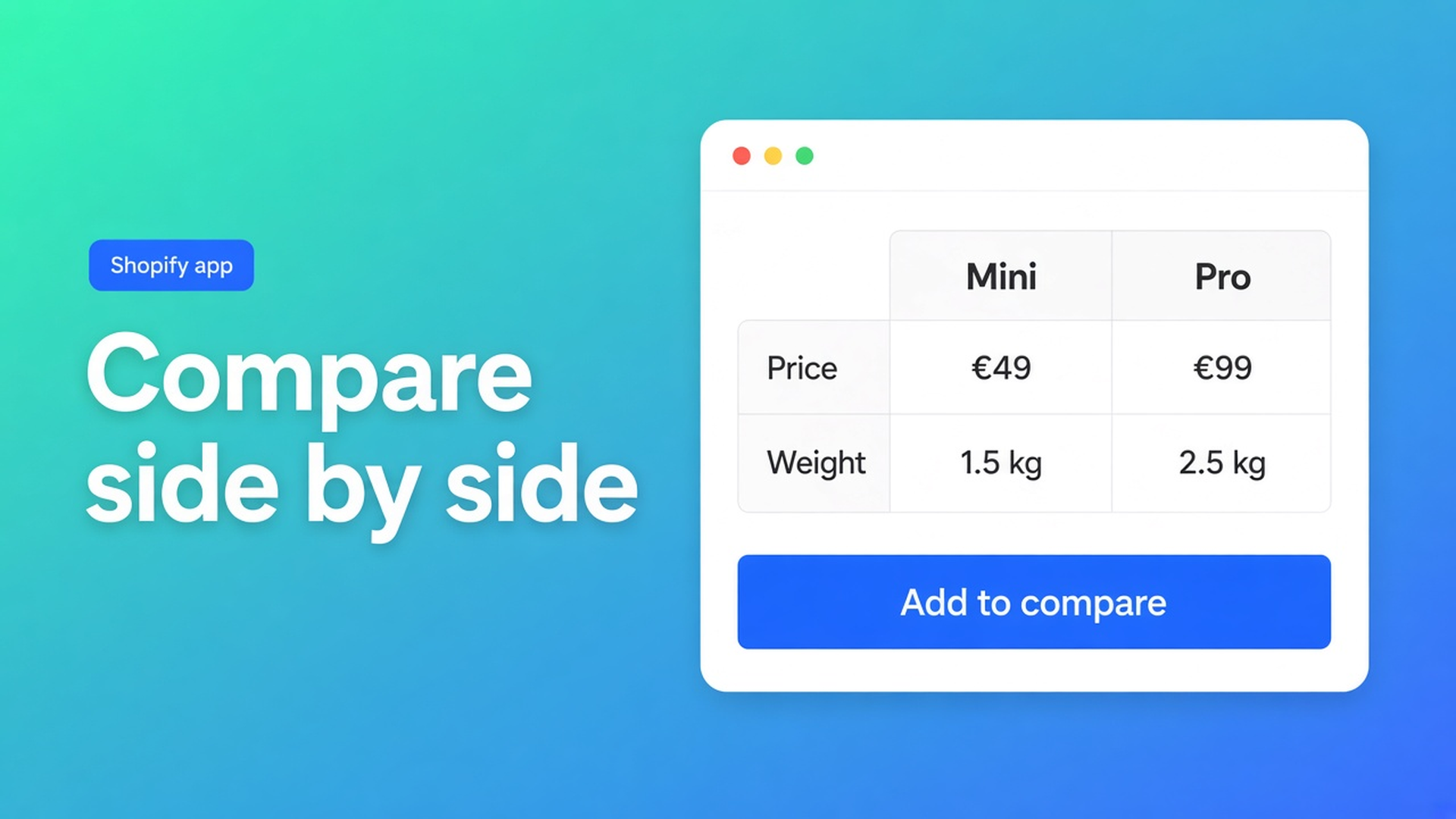
Shopify product comparison table: Add to compare, tray and modal
Two coffee machines, three mattresses, four speakers: the shopper wants columns, not five tabs. A Shopify product comparison table is that side-by-side view — Add to compare, a tray of the selection, a modal of the rows. Native Shopify gives you collection cards and search. It does not give you a comparison grid that keeps metafields live.
This article covers why an HTML table on a “Compare” page goes stale, how OO - Advanced Table Builder builds Comparison as its own type, and how placement works: Compare button block or inject under the price. Listing name: OO - Advanced Table Builder. Docs sometimes still say Tables, Specs & Comparisons. The CTA stays that listing URL.
We already covered the product specs table. Specs = the current product. Comparison = several products side by side. Do not mix the types.
Shopify has cards, not a comparison grid
Collections show products. Search filters them. What is missing: the shopper picks A and B, opens a table, sees weight, wattage, price, stock state in columns. What merchants actually have:
a page “Compare our range” with a screenshot;
metafields that never render next to each other;
theme sections that vanish on a theme switch.
Theme app blocks solve *where*. Someone still has to build the comparison type, set visibility, and run the tray.
What merchants try instead
One long description per product. The shopper opens three tabs. Nothing sits side by side.
A CSV pasted into a page. Stale the moment wattage changes. No Add to compare, no tray.
Us vs Them as “us versus the market”. That is a different type in the same app (feature rows, yes/no/text). Not a live multi-product picker. Naming competitors to tear them down belongs nowhere — including Us vs Them.
Liquid that prints two `all_products` side by side. Breaks on the next theme update. No AI draft, no per-locale strings.
None of those routes is: type Comparison, Add to compare, tray/modal via the app embed, metafields that follow the product.
How Comparison sits in the app
OO - Advanced Table Builder is Free (0 reviews, launched 17 September 2026). UI in English. Works with: AI, Excel, Google Sheets.
Listing: size charts, specs, comparison tables, tabbed content, Us vs Them. Visual builder or an AI draft from a description or screenshot. Connect product and variant metafields so values stay current. Style, place on products and pages, translate customer-facing text. Listing categories: comparison table, multi-product, highlight differences, show and hide.
This article is the Comparison path. Size charts can auto-place above Add to cart. Specs use the Product specs theme block only — no ATC auto-inject. Do not claim otherwise. Tabbed and Us vs Them always go through their block (specific table ID) or a shortcode.
Builder: rows that come from product data
Structure: comparison rows (price, weight, a metafield, a custom attribute). After an AI draft: check module types so Weight/Price/options are Shopify-backed modules, not frozen custom attributes. AI is a draft, not a perfect mapping guarantee.
Design: colours, fonts, templates, highlight differences where the listing names that. Settings: enable, visibility / product rules — which products may enter the comparison. Translations: triggers, empty state, column labels per locale.
Placement: block, inject, tray
Place tables with theme blocks: Customize → template (product, collection, page) → Add block → Apps → Compare button — “optional manual Compare placement”. On a collection, put it on product cards if you want Add to compare there.
Auto-placement rules for Comparison:
If the Compare button block is absent, each comparison table can opt in to inject Add to compare under the price (Settings → comparison placement).
The tray and modal still come from the app embed. No embed, no runtime.
Enable the app embed: Theme settings → App embeds → Tables, Specs & Comparisons. Theme blocks alone are not enough for tray/modal, Compare inject, or Size chart auto-placement.
Shortcodes are optional: `[oo-table id=YOUR_TABLE_ID]`, embed on, table enabled. For the default PDP, a Compare block or the price inject is easier to maintain.
Example: three espresso machines
SKUs: Mini, Pro, Max. Metafields: reservoir (cl), boiler, weight. Shopper on the “Espresso” collection wants Mini vs Pro.
Install from the listing. Create table → Comparison. Or AI: “compare espresso machines on reservoir, boiler, weight, price” plus a screenshot of the old page (PNG/JPEG/WebP/GIF, max 4 MB).
Structure: Shopify modules for price/weight, metafields for reservoir and boiler. Review the AI mapping.
Visibility: the three machines (or the collection). Enable.
Embed on. On Default product: no Compare block if you want inject under the price — turn the opt-in on in Settings comparison placement. Or do put the Compare block next to the price if you want the slot yourself.
On the collection template: Compare block on the cards so Add to compare can start there.
Test: Mini + Pro in the tray, modal opens, columns match, DE locale shows translated labels. Mini’s Specs stay a separate Specs block — that table does not inject next to Add to cart.
What you need to start
Install OO - Advanced Table Builder (Free).
Comparison table: Structure (Shopify modules + metafields) → Design → Enable and visibility.
App embed on. Compare block where you want the button, or inject under the price if the block is missing.
Test tray/modal on the storefront with two products.
Keep size charts and Specs as their own types. Specs: theme block, no ATC auto-inject.
No other OO app in this post. No competitor listings.
Wrap-up
A Shopify product comparison table is not a screenshot in the menu. It is Add to compare, a tray, a modal, rows wired to product data. Native Shopify stops at cards. OO - Advanced Table Builder puts the comparison type live — embed for the tray, and a Compare block or an inject under the price.
Put Mini and Pro side by side before the shopper opens five tabs.

The Shopify Select partner for ambitious e-commerce businesses that want to grow!


Services
Reviews
5/5
Mail: info@onlineorigins.nl
Tel: 073 234 0612
KVK: 89825624
BTW: NL865123639B01
Bruistensingel 500,5232 AH 's-Hertogenbosch Cookies
© 2026 Online Origins