
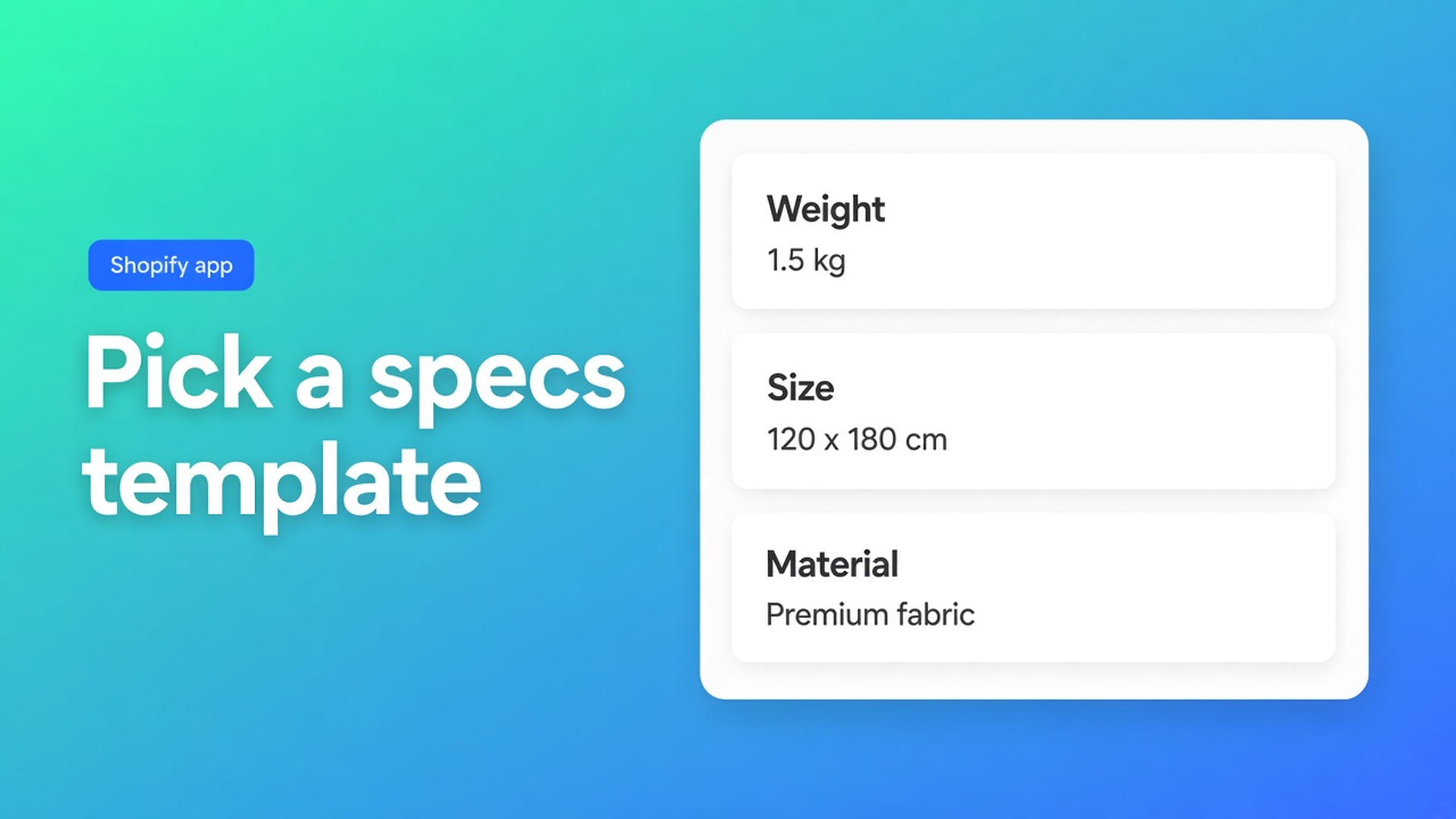
Shopify product specs layout templates (design, not rows)
The modules are right: weight from Shopify, a metafield for capacity, a custom line for “dishwasher safe.” On the live product page it still looks like a stacked definition list. You want cards. You do not want to rebuild the table.
Shopify product specs layout templates live in the Design step of OO - Advanced Table Builder. The docs list details panel, classic, and cards. Design is the skin. Structure — groups, modules, live fields — does not move.
The app is Free. Store handle `tables-specs-comparisons`. Yesterday covered shortcodes on pages. The older specs table post is the content. This one is the template.
Finish Structure before you pick a skin
The builder is Structure → Design → Settings → Theme. What is Tables, Specs & Comparisons? uses that order. Product Specs reads live Shopify fields and custom attributes for the current product. There is no Add-to-cart auto-inject for Specs. You place a Product specs theme block.
Design settings overview by type:
Size charts — popup vs plain, trigger, colors.
Product Specs — layout templates (details panel, classic, cards, …).
Comparison — grid/cards/spotlight, modal and tray.
Tabbed — tab chrome.
Us vs Them — highlight templates.
Switching classic → cards keeps the same Weight module. You are not duplicating rows.
Refine with AI on Design accepts a written description, a screenshot, or a site URL so public brand colors and fonts map onto this table type. Confirming merges design overrides only. Structure stays as-is. The table type stays Specs.
Colors, fonts, spacing, and chrome are Design. The listing also mentions Custom CSS, import/export, Excel and Sheets — those fill values, not templates.
Dead ends
Pasting an HTML table into the description. It dies on the next theme. It ignores metafields.
Cloning the Specs table for each look. Two structures to keep in sync. One table, another template is the intended switch. Product visibility in Settings is not a second Structure.
Running Refine on Structure because you wanted prettier tiles. Structure refine can reshape rows and still locks the type. Skin-only work belongs on Design.
Dropping `[oo-table id=…]` to “change the style.” The shortcode mounts the same table. Use it when Add block is missing, not as a theme.
When each template earns its keep
The docs name the templates; they do not publish a formal decision tree. Practical read:
Details panel — tight feature/value stack near the buy column. Busy technical PDPs.
Classic — two-column table. Familiar, easy to scan.
Cards — one tile per feature. Better when you only have four rows.
Pick it in Design. Preview. Tweak color and type, or Refine with AI plus your storefront URL. Open Structure: same groups.
Placement: Customize theme → product template → Add block → Apps → Product specs. Docs suggest near price / buy. The app embed auto-places size charts and compare. Not Specs.
Translations in Settings cover customer-facing strings. They do not assign a different template per locale.
After Generate with AI, walk the modules. Weight, Price, and Color should be Shopify-backed where those fields exist — not custom attributes you will retype. That audit is Structure, before you flip cards on. A pretty card around the wrong source is still the wrong source.
Visibility in Settings chooses which products show the table. It is not a second template. One Specs table, classic today, cards next month, same product rules.
The listing is Free, 5.0 from 1 review. “Templates” sits under Display options with color, font, Custom CSS, import/export. That word on the listing is Design, not a second app. Compare’s tray/modal templates are a different type; do not open a Comparison table to restyle Specs.
Walk-through: one spec table, two skins
A cookware brand. Modules: Weight (Shopify), Diameter (variant metafield), Oven safe (custom), Coating (custom).
Install from the listing. New Product Specs, or an AI draft from a sentence. Check modules: Weight should be a Shopify-backed module, not a second custom attribute.
Leave Structure alone once the four rows are right.
Design → classic. Match PDP neutrals. Save.
Add the Product specs block under the price. Embed on. Table enabled.
Too dense? Design → cards. Structure tab still shows four modules. No clone.
Refine with AI (Design) + the shop URL. Accents follow the theme after you confirm.
Comparison and Us vs Them have their own template families (spotlight, highlight). Do not convert specs into those types because cards “feel comparative.”
Do this
Open OO - Advanced Table Builder and a Product Specs table.
Finish Structure. Prefer Shopify modules where the data already lives.
Design: details panel, classic, or cards. Optional Design refine.
Settings: enable, visibility.
Theme block. Do not wait for an ATC inject.
Size-chart templates (popup vs plain) and comparison templates (grid, cards, spotlight) are siblings, not substitutes. Opening the wrong type because you liked a screenshot wastes a Structure pass. Stay on Product Specs, change Design only.
No Premium tier to invent. No claim that AI mapping is perfect without a pass. No other OO app in this post.
Close
Shopify product specs layout templates are details panel, classic, and cards — Design only. Rows stay in Structure. The PDP shows them through a theme block, not through compare’s inject under the price.
Pick the skin in OO - Advanced Table Builder, place the block, and keep Weight wired to Shopify while only the chrome changes.

The Shopify Select partner for ambitious e-commerce businesses that want to grow!


Services
Reviews
5/5
Mail: info@onlineorigins.nl
Tel: 073 234 0612
KVK: 89825624
BTW: NL865123639B01
Bruistensingel 500,5232 AH 's-Hertogenbosch Cookies
© 2026 Online Origins