
Connect OpenAI to Shopify translations: base URL, key, and model
You already pay an OpenAI-compatible provider. The catalog still needs FR and ES. You do not want a second AI invoice inside the app, and you do not want the next job to invent a new spelling of the brand.
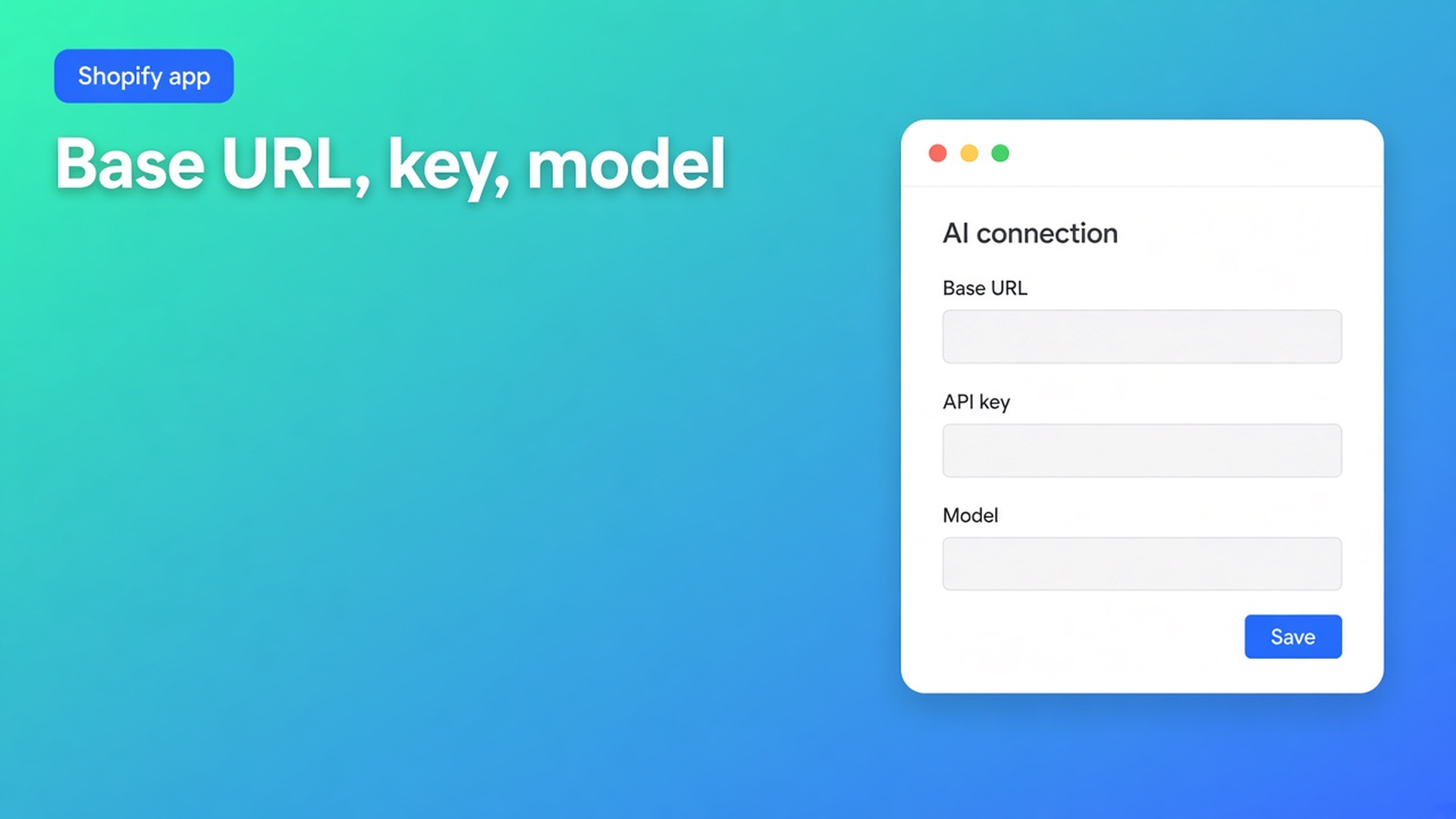
Connect OpenAI to Shopify translations is Settings → AI connection in OO - Ultimate AI Translations: OpenAI-compatible base URL, API key, model. Save. A small test translation. Docs say glossary and brand voice travel with the request.
Yesterday was locks on copy you saved. The 17th was App AI at $0.01. This post is only your own key: three fields, what “compatible” means, and what to check when Jobs says AI error.
Three fields beat another chat tab
Shopify Markets will publish locales. It will not fill 400 titles. A chat session will, without a lock, without job history, and without skipping S/M/L.
The OO Translations listing (Free plan, usage on paid plans, 0 reviews, launched 14 October 2026): *Connect your own A.I. model or use our fairly priced and powerful standard model.* Works with A.I., ChatGPT, LLMs. Free includes:
The app at $0
Connect your own AI
Unlimited languages, markets, translations
Language switcher
No backups, no scheduled jobs, no App AI
Professional $10/month + usage: glossary, 1+1 backup, monthly schedule, App AI billed at translation cost (~$0.01/unit) *or* your own AI. Plus $20: 5+5 backups, daily schedule, same unit price or own AI.
Your own API is available wherever the listing says Connect your own AI — including Free. App AI is the default on Professional/Plus if you leave the Home setup guide on it. You are not required to switch.
What Connect AI actually asks for
Open Settings → AI connection.
Enter an OpenAI-compatible base URL, API key, and model.
Save. Run a small translation to verify the connection.
OpenAI-compatible means the endpoint speaks the same protocol as OpenAI’s API. That matches the listing’s ChatGPT / LLMs line. It is not a promise that every model on the internet “just works.” Use the URL your provider documents, the key you created there, the model name that provider expects. Do not invent a model string.
Notes on the same page:
Brand voice and glossary settings are sent with AI requests so wording stays consistent.
If a job fails with an AI error, check the key, the model name, and remaining credits at the provider.
Quick start puts Connect AI as step 2, after you publish languages, before “products to translate.” Backup (step 4) is Professional/Plus, not Free. Brand voice + glossary is step 5, optional — the listing puts Glossary on Professional. Do not sell a glossary checkbox on $0.
Jobs skip handles, URLs, IDs, SKUs, barcodes, size codes (S/M/L), JSON, empty source, locked fields. That is the app, not the model. Your compatible model never sees strings the job refuses to send.
How the first job stays red
Key only, base URL blank. The provider is not always the public OpenAI host. Without the right base URL the request dies. Docs: three fields, not one.
A model name from a blog, not from the provider console. Jobs → failed, AI error. Fix the model name where you pay, not in a guess.
Credits gone at the provider, app Save still green. Save stores the fields. The small translation proves credits. Do not skip it before 400 SKUs.
App AI and your key “both, to be safe.” One connection. Either the default app AI on a paid plan, or your three fields. Mixing them does not double quality; it confuses Jobs.
None of that replaces: three fields, Save, ten Missing fields, Jobs showing translated / skipped / failed.
Worked example: FR on a key you already have
Shop “Lamp & Line”. EN is the source. FR needs to go live. The OpenAI-compatible key already exists for internal tools. Free plan: Languages → publish FR. Settings → AI connection: that provider’s base URL, the key, a model the account allows. Save. Translate action on Missing, one collection, titles + SEO. Jobs: SKUs skipped (good), two titles failed (typo in the model name). Fix the string, retry, green.
Brand voice later: tone, formality, prefer/avoid. Glossary (brand names per language) when you take Professional — do not invent it on Free. Locks: a sentence you edit and save in the editor is not overwritten by the next job. The storefront switcher is Free.
Schedules stay off until Professional (monthly) or Plus (daily). The key does not unlock those.
Do this in order
Install OO - Ultimate AI Translations.
Languages: publish what you sell.
Settings → AI connection: base URL, key, model. Or, on Professional/Plus, leave the setup guide on App AI (~$0.01/unit).
Small run. Read Jobs. AI error → key / model / credits.
Then content types (products, pages, theme, metaobjects, draft themes). Locks on copy you wrote.
Style the switcher. Backup and schedule only if the plan includes them.
Do not pitch another OO app. Do not invent a star rating. Do not “translate” handles.
Wrap-up
Connect OpenAI to Shopify translations is not a second subscription. It is three fields on Settings → AI connection, a test translation, and a Jobs list that shows skipped technical values. Glossary and brand voice ride on the request — glossary on Professional per the listing. Free: your own AI, unlimited translations, no App AI, no schedule, no backup.
Put the key in OO - Ultimate AI Translations and leave the meter at the provider until you deliberately turn App AI on.

The Shopify Select partner for ambitious e-commerce businesses that want to grow!


Services
Reviews
5/5
Mail: info@onlineorigins.nl
Tel: 073 234 0612
KVK: 89825624
BTW: NL865123639B01
Bruistensingel 500,5232 AH 's-Hertogenbosch Cookies
© 2026 Online Origins