
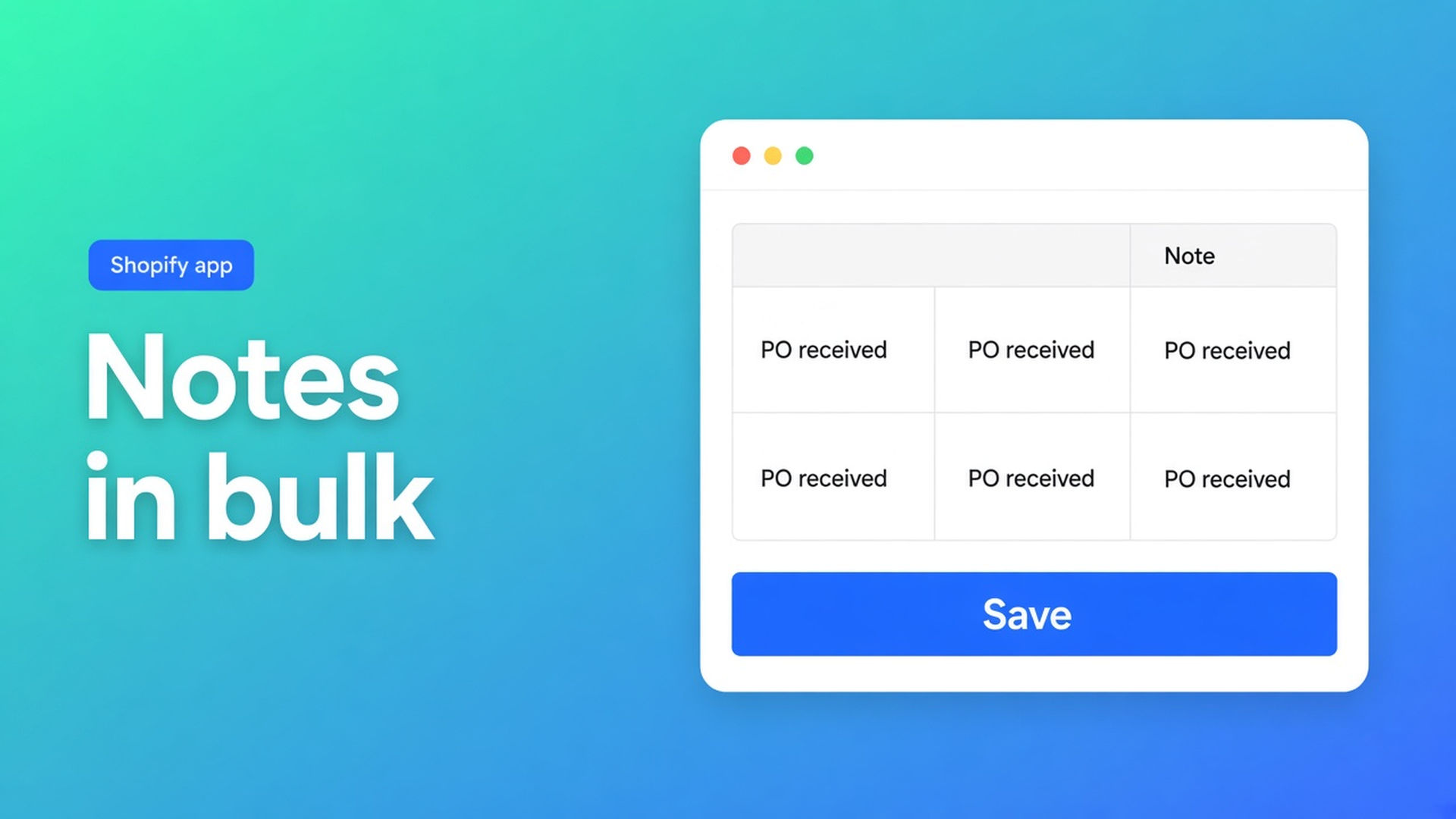
Bulk-edit Shopify customer notes without opening each profile
Accounts still say `Hold — waiting on PO`. The POs arrived. You need one replacement line on 140 wholesale customers: `PO received — release holds.` Shopify’s customer page keeps Note at the bottom of a single profile. Opening 140 of those is not a workflow.
Shopify bulk edit customer notes is the Note column in OO - Bulk Customer Data Editor, in the same grid as name, email, phone, and tags. Type a cell. Or apply one sentence to a selection. Nothing reaches Shopify until Save. Discard drops the staging.
Yesterday covered the select-all matching cap. This article stays on Note. Locale and tax exemption remain the listing USPs; they sit in the same sheet and are not the job here.
A Shopify Note is one box, one customer
Useful for a private remark. Useless when you need the same remark on a filtered set, or when you need to find who still has “hold” in the box.
Workarounds that leak:
Open every profile. Fine at a dozen. Not at 140.
Native export, edit the Note column, overwrite on the way back. An empty cell in that file can wipe a real note. This app’s FAQ leaves empty CSV cells unchanged on updates. Do not claim native Shopify CSV does the same.
Stuff sentences into tags (`hold_po`). Tags are for filters and segments. Notes are sentences. Mixing them is how you later cannot find the tag you meant to keep.
None of those give you: Note visible in a grid, filter on its text, stage one sentence, Save after you like the preview.
Listing: Free, 0 reviews, launched 15 September 2026. Do not invent a rating. The fields Shopify’s standard editor handles poorly — Customer Locale and tax-exemption — share the sheet with Note. They are not this topic.
What the Note column actually does
Edit customers in the spreadsheet lists General fields: first name, last name, email, phone, tags, note, locale, tax exempt. Plus marketing consent (Shopify’s rules), default address, metafields defined on the shop. Read-only examples: total spent, order count, created date.
Click a cell. Type. Keep going. Shopify save bar → Save. Discard throws away every unsaved change. The docs are blunt: a save is permanent. Only changed fields are sent. Edit Note alone and locale stays put.
Columns, filters, and sorting: the Columns picker shows or hides fields. Turn Note on if it is off. Filters run across the whole customer list, not the current page. Search (name, email, phone, tags) hits Shopify’s customer search. Note — like locale and some metafields — is matched while results are scanned. On a large store, search or a segment first, then a note filter (`contains`, `is empty`).
Apply a value to many customers:
Tick rows, or Select all matching (current search + segment + filters, up to 50,000).
Bulk bar: Field = note, Value = the sentence.
*Apply to selected*. The grid shows staged cells.
Save — or Discard.
Bulk apply stages. It does not write. Selected customers do not all have to be on screen.
Entry points: *Start editing*, or Customers → More actions → Edit in bulk. Excel and Google Sheets via CSV. Large saves run in batches; keep the tab open.
Notes are not tags, and they are not locale
Tags belong in the tag column so you can filter and build segments. We already wrote bulk tag edits. “Do not call before 10:00” belongs in Note.
Locale fixes the language of notifications. A sentence in Note will not.
Empty CSV cells on an update do not clear an existing note in this app. Fill the cell only when you intend to replace the text.
Floor example: 140 holds, one release line
Shop “North Pack”. Tag `hold_po` is still on the accounts. Notes are free text, not identical. Ops wants one line: `PO received — release holds.` Untagged customers stay untouched.
Install OO - Bulk Customer Data Editor (Free).
Customers → More actions → Edit in bulk. Columns: Note on, Tags on. Hide the rest if the grid is noisy.
Search or filter tag `hold_po`. Optional: note `contains` `hold` so empty notes in that group still show.
Select all matching. Yesterday’s cap: 50,000, not infinite. Here it is 140 rows.
Bulk apply → note → the release line → Apply to selected. Check five staged cells.
Save. Leave the tab open. Open three customer profiles in admin and read the Note.
Need a second line on ten accounts (“credit follows”)? Type those cells after the bulk apply, still before Save. Discard if the preview grabbed the wrong set.
Next month’s holds: save a view (columns + filter + sort). Shop-wide, on the dashboard. No new spreadsheet.
Get it done
Open the listing. Free. No paid tier on the listing.
Show the Note column. Filter first (tag, segment, `is empty`), then select-all.
One sentence via bulk apply. Exceptions cell by cell in the same staging pass.
Preview. Save or Discard. After Save the staging is gone; the note now lives on the customer.
Large set: keep the tab open until progress finishes.
Close
Shopify bulk edit customer notes is the Note column in the same grid as tags and locale. Cell or bulk apply. Discard until Save. Note filters scan results — pair them with search or a segment. Select-all matching stops at 50,000.
Write the sentence in OO - Bulk Customer Data Editor. Leave the 140 profiles closed.

The Shopify Select partner for ambitious e-commerce businesses that want to grow!


Services
Reviews
5/5
Mail: info@onlineorigins.nl
Tel: 073 234 0612
KVK: 89825624
BTW: NL865123639B01
Bruistensingel 500,5232 AH 's-Hertogenbosch Cookies
© 2026 Online Origins