
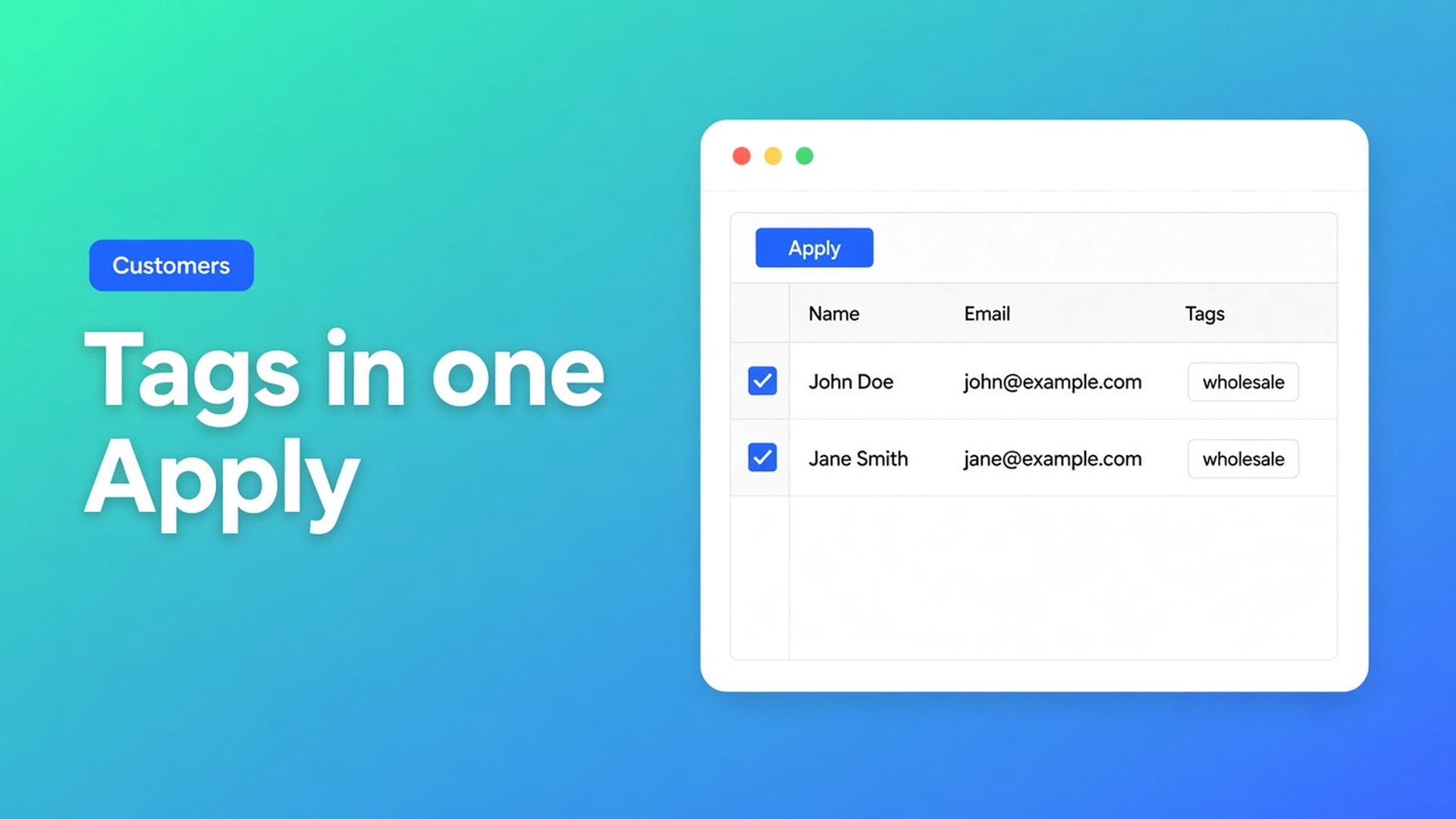
Shopify bulk update customer tags: up to 50,000 matches, then Save
A tag is the handle you filter on later: wholesale, `nl-customer`, `tax-check`. Shopify bulk update customer tags sounds like the Customers index already does it — select rows, More actions, Add tags. That works for the rows in view. It fails when you need to tag three thousand accounts on a search plus an empty locale field, see the change in a table first, and only then write to Shopify.
This article covers how OO - Bulk Customer Data Editor writes tags in the spreadsheet, how search versus filters work, and why you often set tags *so you can* bulk-apply locale or tax exempt next.
We already covered the customer spreadsheet editor. Here the Tags column is the topic, not the whole grid.
What native Shopify does with tags
On Customers you can tick accounts and add tags. That is a real Shopify action, not a myth. Limits you hit in practice:
the selection is the current page or a manual set, not “everyone matching search + filter + segment up to 50,000”;
you do not see the new tag next to locale and tax exempt in one grid before you confirm;
a second field (locale, tax exempt, note) is a second round, per profile or via CSV.
Shopify’s own customer CSV can carry tags. Empty cells in *this* app do not clear existing values on update — FAQ. Native import is a different contract; do not claim Shopify CSV behaves the same.
Tags are filters, not locale and not the tax-exempt flag. Notifications follow Customer Locale. Checkout follows tax exempt. You still often start with tags: mark the group, then the field native bulk cannot reach cleanly.
What merchants try instead
1. Add tags on the Customers index
Twenty rows: fine. Two thousand: you page, you miss matches, you have no staged preview.
2. Export → Excel → tags column → import
Works when headers and matching are right. Breaks when you drag other columns along, or when you assume an empty cell clears a tag. In Bulk Customer Editor, empty CSV cells do not clear values on updates.
3. A flow: “new customer gets tag X”
Useful for inbound. Useless for fixing the existing list once.
None of those routes is: search/filter → select-all matching → Field = tags → staged cells → save bar.
How the editor writes tags
OO - Bulk Customer Data Editor is Free (listing, 0 reviews, launched 15 September 2026). Spreadsheet in admin: bulk-edit, import/export, fields Shopify’s standard editor leaves awkward — Customer Locale and tax-exemption status first. Tags live in the same table. Excel and Google Sheets via CSV. No other OO app in this post.
Open it: Customers → More actions → Edit in bulk, or from the app dashboard.
Edit customers in the spreadsheet: editable fields include first name, last name, email, phone, tags, note, locale, tax exempt; marketing consent (Shopify opt-in rules); default address; customer metafields defined on the shop. Only changed fields go to Shopify. Read-only: total spent, order count, created date. Failed row: Shopify’s error message.
One cell: click, type the tag value, continue. Or the same value on many rows: Apply a value to many customers.
Tick rows, or Select all matching (current search + segment + filters, up to 50,000). Progress while the selection is collected. Not every row has to be on screen.
In the bulk edit bar: Field, for example tags.
Enter the Value.
Apply to selected — that stages in the editor. Nothing hits Shopify yet.
Review cells, then Save on the Shopify save bar. Saves are permanent; Discard drops unsaved edits.
Large saves run in batches. Keep the tab open. Closing it can interrupt the job.
What bulk apply *writes* on tags is the field value you enter — the same value on the selection. Do not invent “append beside existing tags” or “remove only tag X” unless the docs spell that out. Check staged cells before Save. For a tags-only CSV pass: leave other cells empty so existing data stays.
Search versus filters
Columns, filters, and sorting:
Search asks Shopify for matches on name, email, phone, tags.
Filters run across the whole customer list (with search and segment), not only the page. Tags go to Shopify’s customer search. Locale and note are matched while scanning results.
Large shop: search or a segment first (for example an existing wholesale tag), then extra filters, then select-all matching. Otherwise you scan more than you need.
Turn the Tags column on next to Locale and tax exempt. In one grid you see whether the group you are about to tag already has the right language and exemption — or whether the next bulk apply has to fix those.
Example: 2,400 “Germany” accounts, still no `de-b2b`
Migration. Address country is DE. Tag `de-b2b` is missing. Locale is store-default. Tax exempt is still off.
Open the editor. Columns: tags, locale, tax exempt, email, country.
Search or filter on the German address / existing country tag; optionally a Shopify segment “Germany”.
Select all matching (under 50,000).
Bulk apply Field = tags, Value = what you want to see in the staged cells. Review.
Save, tab open, preview.
Second pass on tag `de-b2b`: locale German (`de`) and tax exempt where it belongs. Tags are the filter for those USP fields, not the end goal.
You can save a segment from filters; views are shop-wide. Do not claim infinite select-all: the cap is 50,000 per apply.
What you need to start
Install OO - Bulk Customer Data Editor (Free).
Customers → More actions → Edit in bulk. Show the Tags column.
Search/filter until the group is right. Select all matching.
Bulk apply on tags. Check staged cells. Save, tab open.
Optionally reuse the same view to set locale or tax exempt on that tag.
Protected customer data: if Shopify blocks the app, editing is limited until access is approved. Segments depend on Shopify permissions for the shop and staff account.
Wrap-up
Shopify bulk update customer tags is more than Add tags on the index. It is search and filters across the whole list, up to 50,000 matches, the same field value staged, Save with the tab open. Tags mark the group; locale and tax exempt — the listing USPs — you can then fix in the same spreadsheet.
Open the editor in OO - Bulk Customer Data Editor, tag the German accounts in one apply, and let the next pass follow with language and exemption.

The Shopify Select partner for ambitious e-commerce businesses that want to grow!


Services
Reviews
5/5
Mail: info@onlineorigins.nl
Tel: 073 234 0612
KVK: 89825624
BTW: NL865123639B01
Bruistensingel 500,5232 AH 's-Hertogenbosch Cookies
© 2026 Online Origins