
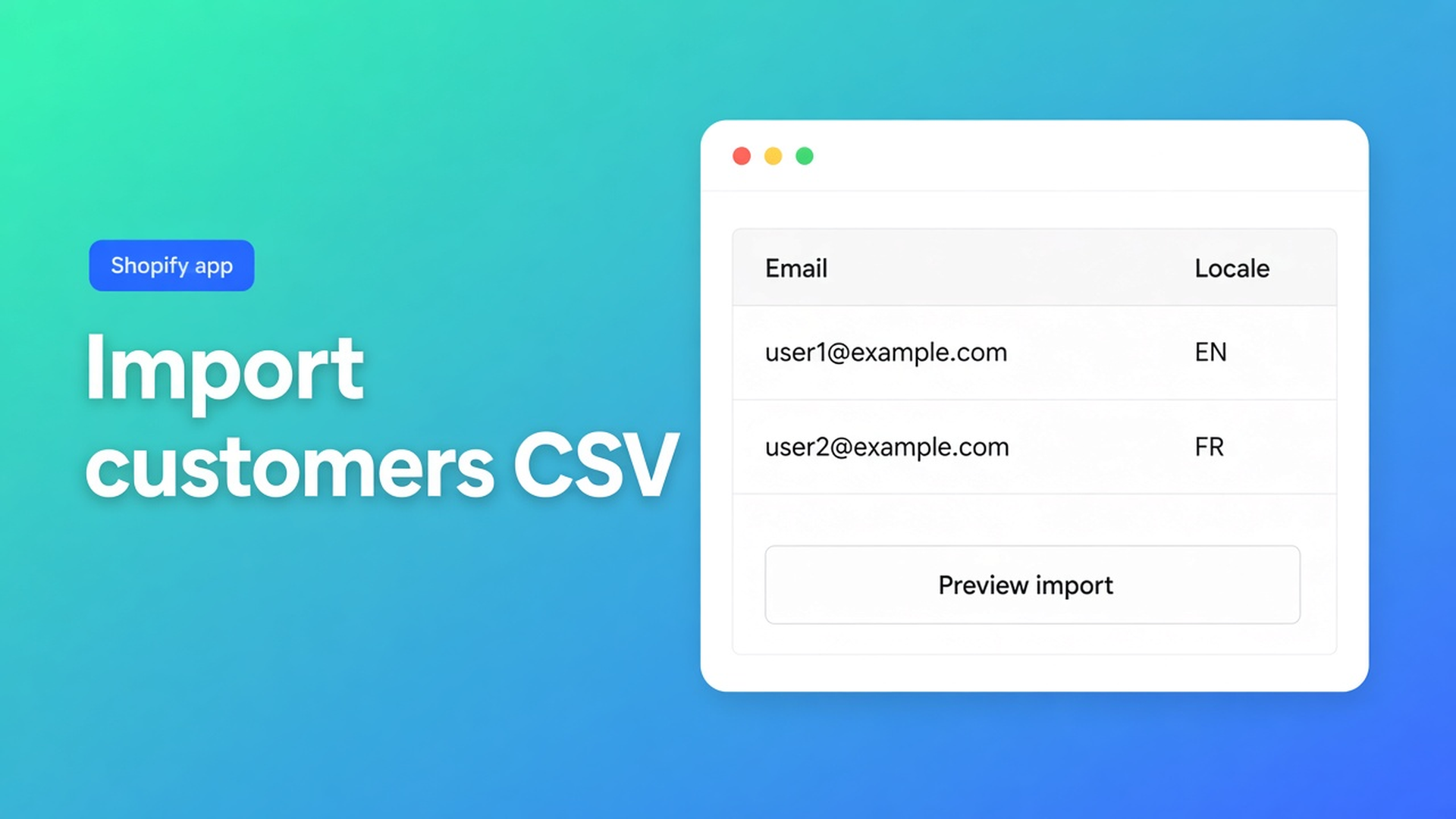
Shopify import customers CSV: preview, matching, then locale and tax exempt
You have an export from an old shop, a sales spreadsheet, or Shopify’s own customer CSV. You click Import, the bar finishes, “success”. A week later confirmation emails go out in English to Dutch accounts, and wholesale buyers still pay tax. Shopify import customers CSV is not done when the rows land. Done is: you understand matching, you read Preview, and you checked the fields native bulk-edit handles poorly — Customer Locale and tax-exemption status.
This article follows Import customers from CSV in OO - Bulk Customer Data Editor: the steps, ID versus email matching, what empty cells *do not* do, and the cleanup after. We already covered customer language wrong after import and tax exempt in bulk. Here the import itself is the topic.
Do not pitch another Online Origins app. The CTA stays this listing. Native Shopify CSV is a different contract; do not claim they behave the same.
What native import is — and is not
Shopify Help Importing and exporting customer lists lets you drop a UTF-8 CSV up to 15 MB into Admin. Columns such as First Name, Email, Tax Exempt (`yes`/`no`), Tags, consent. Overwrite on the same email or phone replaces existing data, including import tags. You cannot migrate passwords. Total Spent and Total Orders do not import.
Admin bulk editing covers First name, Last name, Tags, Email, Accepts email marketing, plus metafields. For address, phone, or tax exempt, the same Help says: open the profile or use a CSV. Customer Locale is not a native bulk column there. This app’s listing calls Locale and tax-exemption status the fields the standard editor does not handle well in volume.
If you only use native Import:
tax exempt can sit in the CSV, but you only notice later whether the flag is right;
locale is missing or lands on the store default;
overwrite drags notes and consent along if columns are sloppy.
None of those paths gives you Preview in a spreadsheet editor plus a targeted locale/tax-exempt cleanup.
What merchants try instead
1. Native Import with Overwrite on “so everything matches”
It matches — including fields you did not mean to touch. One bad column rewrites the profile.
2. Excel the CSV, re-import, assume blank means “clear this”
In this app, empty CSV cells stay unchanged on an update. Only filled cells apply. That is useful for a second pass that only sets Locale. It is also why a first import can leave locale empty or wrong while name and email arrive. Do not claim native Shopify CSV works the same.
3. Import and never open the grid
The listing promises import/export of data Shopify leaves out, plus store-to-store migration. Without a filter after import you miss the two USP fields. Tags are not locale. `Wholesale` is not the tax-exempt flag.
None of those shortcuts replace: Preview → understand matching → keep the tab open → then filter.
How import works in this app
OO - Bulk Customer Data Editor is Free. Listing: spreadsheet editor; bulk-edit Locale and tax exemption; import/export of fields Shopify leaves out; migrate between stores; filters, views, segments. Works with Excel and Google Sheets via CSV. No reviews on the listing yet; do not invent a rating.
Open Customers in the app → Import. Docs steps:
Upload a `.csv`.
Preview import: what will be created, what will be updated.
Confirm. Large files run in batches with a progress indicator — keep the tab open until it finishes. Closing the tab can interrupt the job (FAQ).
Failed or skipped rows: an Import results summary to download or review. Fix the error, retry the rest — do not blindly re-run the whole file.
Matching: ID, then email, then create
Strict order from the import docs:
Customer ID exists in this store → update.
Otherwise look up by Email.
Still not found → create (email or phone required).
A Shopify CSV from another store can be imported: foreign Customer IDs are ignored when they do not exist here; matching falls back to email. Useful for migration. Dangerous if two shops share an email for different people — you update the wrong record.
Formats and marketing values
Supported:
this app’s own export CSV;
Shopify’s standard customer export (headers such as First Name, Email, Accepts Email Marketing, Default Address …).
Yes/no values in Shopify CSVs map to marketing states (for example yes → subscribed, no → unsubscribed). Consent must follow Shopify’s rules: subscribed without a valid opt-in can fail. Read the error; do not force “everyone subscribed”.
Read-only in the editor (you cannot “fix” them via import): total spent, order count, created date. Metafields appear when defined on the shop or already present on loaded customers; unsupported types may not be editable.
After import: walk locale and tax exempt
Import fills accounts. It does not guarantee the right language or exemption. That cleanup happens in the same grid.
Open the editor: *Start editing* or Customers → More actions → Edit in bulk. Staff need `read_customers` and `write_customers`. Locale is a dropdown of Shopify locales, for example Dutch (`nl`) or English (`en`) — not free text “dutch”. Tax exempt is a yes/no-style field, per row or via bulk apply.
Filters run across the whole customer list. Locale is empty or is `en`. Tax exempt is no plus tag `Wholesale`. Search (name, email, phone, tags) hits Shopify search. Large store: segment or search first, then filter (FAQ).
Bulk apply: Select all matching up to 50,000; pick Field (Locale or tax exempt); Value; Apply to selected. Nothing hits Shopify until Save. Large saves: keep the tab open. A failed row is Shopify’s error; retry the rest.
A second CSV pass is fine: fill only the columns you want to change, leave the rest empty — empty cells do not clear existing values. Useful when the first import brought names in and you now set Locale only.
Example: 4,200 rows from shop A to shop B
Export from the old store (Shopify headers). Import in the new shop: Preview shows mostly create (IDs do not exist here), email match for like-for-like accounts. Tab stays open. Summary: twelve rows with neither email nor phone — skipped, no new account.
Then filter Locale is empty → bulk apply Dutch (`nl`) on the NL-tagged set. Filter tag Wholesale + tax exempt no → bulk apply exemption. Spot-check ten profiles. No second native Overwrite that flattens notes.
What you need to start
Install OO - Bulk Customer Data Editor (Free).
CSV: this app’s export or Shopify standard headers, UTF-8. No purchased email lists (Shopify’s warning).
Import → Preview → confirm. Keep the tab open. Read the results summary.
Editor: filter empty/wrong locale, tax exempt versus wholesale tags.
Bulk apply, Save, spot-check. Retry failed rows.
Help: support chat on the dashboard.
Wrap-up
Shopify import customers CSV in this app is Preview, strict matching, batched jobs with the tab open, and empty cells that do not wipe updates. After that, Locale and tax exempt belong in the grid — the listing’s point — not as a cleanup three sprints later.
Run the import from the Bulk Customer Data Editor listing and open Preview before you confirm 4,000 rows.

Custom webshops, websites, and applications combined with smart online marketing to help your business grow online!


Reviews
5/5
Mail: info@onlineorigins.nl
Tel: 073 234 0612
KVK: 89825624
BTW: NL865123639B01
Bruistensingel 500,5232 AH 's-Hertogenbosch Cookies
© 2026 Online Origins