
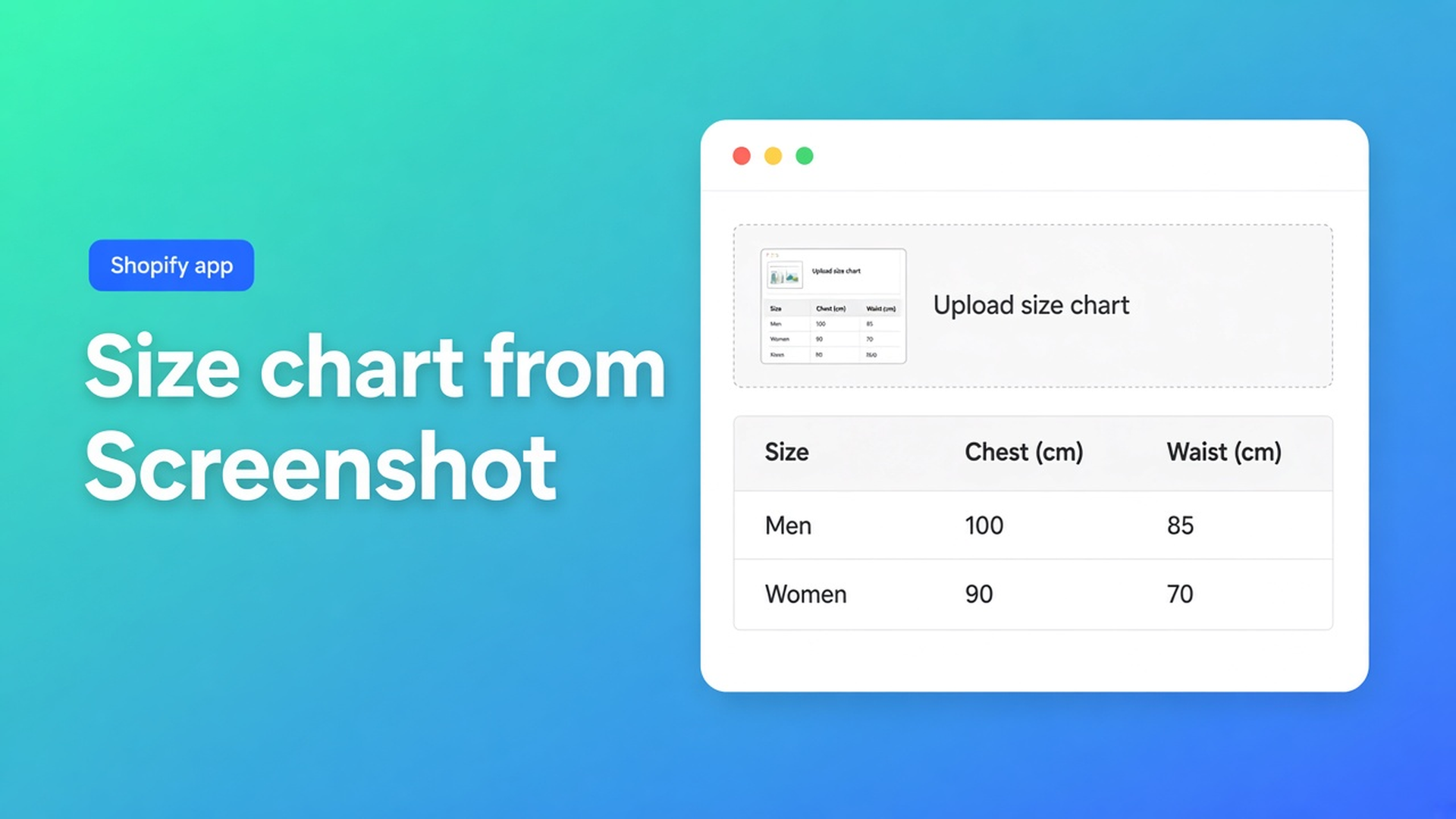
Shopify size chart from screenshot: upload, AI draft, then Structure
The supplier emails a PNG. Chest, waist, length in centimetres. You need that grid on the product page, next to Size S/M/L. Retyping it as HTML is an afternoon and breaks on the next theme switch. A Shopify size chart from screenshot in OO - Advanced Table Builder is the other start: drop the photo, get a Size chart draft, review Structure, place it by Add to cart.
This article is that screenshot path for *size charts*. The wider AI flow (every table type, Refine Design via URL) is in AI table builder. Why Men + Women must not share one mega-table is in multiple size charts. Here: which file, what AI actually does, what you check after Generate, and how the chart lands on the PDP.
Listing name: OO - Advanced Table Builder. Docs still say Tables, Specs & Comparisons in places. CTA stays https://apps.shopify.com/tables-specs-comparisons. No other Online Origins app.
Native Shopify has Size as a variant, not a raster from a photo
Adding variants: max three options, 2048 variants. Size is an option value (S/M/L), not a centimetre table. The supplier photo does not fit there. What shops try instead:
the PNG in the product description — soft on mobile, not per locale, not next to the picker;
one “Size guide” page in the menu — too late in the buy flow;
Custom Liquid until the next theme update.
App blocks put something near the button. You still need a table. There is no native “turn this screenshot into a Size chart block”.
What merchants try instead
1. The PNG 1:1 in the description
Works until someone pinches on a phone, or the women’s hoodie shows the men’s grid.
2. Retype everything in Structure from scratch
Correct. Slow when the source is already a clean grid — which is exactly a supplier screenshot.
3. Trust AI without opening Structure
Create and refine tables with AI: after Generate, review Structure & Design, then save. AI picks a type, fills sample structure, can approximate colours from the image. Sample is not a live metafield.
4. Expect a Specs block as a second size chart
Product Specs is a different type. Auto-placement rules: Specs use the Product specs theme block only. There is no Add-to-cart auto inject. A measurement screenshot belongs in type Size chart.
None of those routes is: screenshot ≤ 4 MB → Generate → separate blocks when Men + Women share one photo → Enable + placement.
What the screenshot flow actually is
OO - Advanced Table Builder is Free, listing 5.0 (1 review). Launched 17 September 2026. Listing: size charts, specs, comparison tables, tabbed content, Us vs Them. Visual builder or an AI draft from a description, photo, or screenshot. Connect metafields, style, place, translate. Works with AI, Excel, Google Sheets. UI in English.
Listing bullet: Generate tables with AI from a description, photo, or screenshot. This post is that photo/screenshot for a size chart.
Apps → Tables, Specs & Comparisons → Create table.
Generate with AI (describe or upload a screenshot) — or Start from scratch if you have no source file.
Type: Size chart (AI may pick it; verify after Generate).
AI create in detail:
Create table → Generate with AI.
Short description (“hoodie size chart, cm, chest and length”) and/or drop a screenshot: PNG, JPEG, WebP, GIF — max 4 MB.
Generate. Review Structure & Design, then save.
Same docs, verbatim: Multiple charts in one photo (Men + Women) become separate blocks. That is why you should not dump the PNG as one HTML table in the description.
Over 4 MB: compress or crop. PDF is not in that list — do not claim PDF upload. A photo of a paper card is fine as JPEG/PNG if the grid is readable and the file stays under the limit.
What you check after the draft
Type is Size chart, not Specs or Tabbed.
Men + Women (or kids) are separate blocks, not one merged table. If not: Refine Structure with AI — type stays locked — with text and/or a cleaner crop. Confirm before replacing structure.
Measurements that already live as a variant option or metafield: map a Shopify-backed module, not custom text. Tip from the same AI docs: after create, review module types so Weight / Price / Color map to Shopify modules. For a pure size chart that is usually centimetres as measurement blocks; do not force a Price module because the screenshot happened to show an SKU price.
Design: template, colours, chrome. Size chart Display mode is popup vs plain — that path is in size chart popup. Optional Refine Design with a shop URL or a brand screenshot; structure stays as-is.
Placement: block or auto above Add to cart
A screenshot draft is not the storefront yet. Enable, visibility, and products: Enable on. Disabled tables do not render. Size charts: All products or Selected products only. Men’s grid only on men’s SKUs, or auto-placement will show the wrong chart. Internal description is admin-only.
Place tables with theme blocks: Customize → product template → Add block → Apps → Size chart. The Size chart block is visibility-based: which chart shows follows Settings, not a table ID in the block (that picker pattern is for Tabbed and Us vs Them).
Auto-placement: app embed on and no Size chart block on the template → enabled Size charts that match visibility can render above Add to cart. If the block is present, the block wins. Several matching charts: keep visibility tight or they stack.
App embed: Theme settings → App embeds → Tables, Specs & Comparisons. Without the embed you lose auto-placement and shortcodes. Optional `[oo-table id=YOUR_TABLE_ID]` when blocks are awkward; on the default PDP the Size chart block or auto-placement is the maintainable path. Where the chart lands is also in size chart on product page.
Example: one supplier PNG, two grids
File: `hoodie-size-eu.png`, 1.8 MB, JPEG/PNG, men on the left, women on the right, centimetres.
Install from the listing. Create table → Generate with AI. Prompt: “size chart men and women, cm”. Upload (under 4 MB).
Draft: AI picks Size chart and can make two blocks. Open Structure. Two charts? Good. One table with every column? Crop or Refine Structure: “separate men and women charts”.
Enable. Visibility: men’s products vs women’s products.
Theme: embed on. Size chart block near Add to cart, or auto-placement if the block is missing.
Storefront: the men’s hoodie shows the men’s grid. Do not expect a Specs block as a second chart.
Multilingual: customer-facing strings later in Settings → translations. AI does not fill every locale automatically.
Second run: the same photo, but 6 MB. Compress first. Generate refuses or fails if you ignore the 4 MB limit — the docs state it outright.
What you need to start
Install the free app from the listing.
Screenshot ≤ 4 MB (PNG/JPEG/WebP/GIF). Sharp grid, no PDF claim.
Generate with AI → Structure (type, separate blocks, modules) → Design → Enable + visibility → theme.
Test on a men’s and a women’s SKU. Popup vs plain is a Design choice, not a second app.
Excel/Sheets: the listing names import/export; if you already have a clean sheet you can start from scratch. This article is the photo source.
Wrap-up
A Shopify size chart from screenshot is not a PNG in the description. It is Generate with AI (max 4 MB), review until Men + Women are separate blocks, Enable with tight visibility, then a Size chart block or auto-placement above Add to cart. Specs do not get ATC inject. The listing promises the draft; the docs require the review.
Open OO - Advanced Table Builder, drop the supplier photo, and publish only when Structure is right — not on the first AI guess.

Custom webshops, websites, and applications combined with smart online marketing to help your business grow online!


Reviews
5/5
Mail: info@onlineorigins.nl
Tel: 073 234 0612
KVK: 89825624
BTW: NL865123639B01
Bruistensingel 500,5232 AH 's-Hertogenbosch Cookies
© 2026 Online Origins