
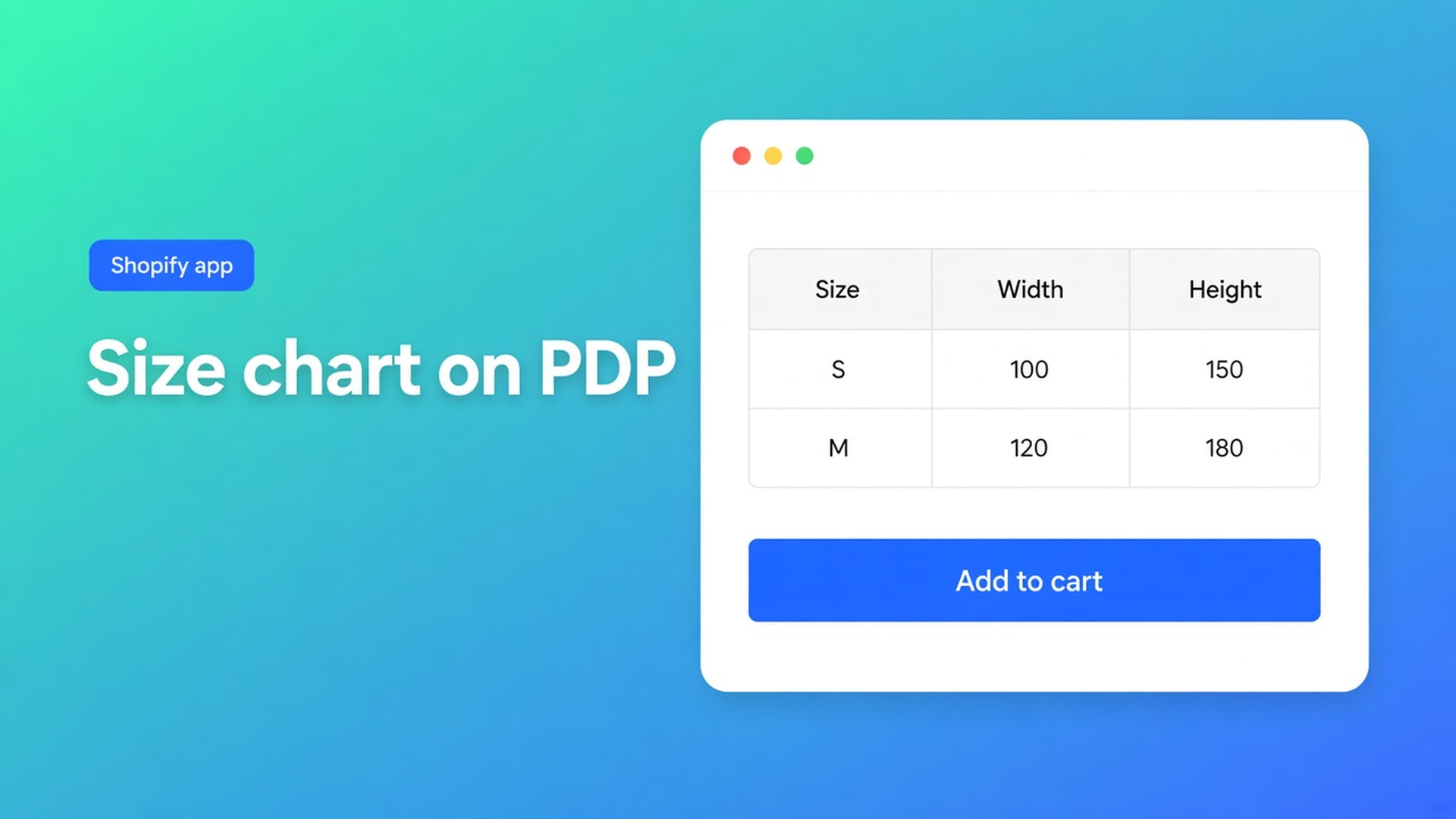
Shopify size chart on product page: block by Add to cart, or auto-placement
A size chart on a separate “Size guide” page is three clicks from the buy. A Shopify size chart on product page belongs next to the variant picker: see the centimetres, pick the size, Add to cart. Native Shopify gives you Size as an option, not a table beside the button. An HTML table in the description sinks under reviews on a phone.
This article is about *where* the chart lands. How OO - Advanced Table Builder places a Size chart as a theme block, and when auto-placement puts it above Add to cart if that block is missing. We already covered what a size chart app is (popup vs inline, Structure). Here the subject is the product template.
Listing name: OO - Advanced Table Builder. Docs sometimes still say Tables, Specs & Comparisons. The CTA stays that listing URL.
Native Shopify does not put a chart by the button
Adding variants caps a product at three options and 2048 variants. Size is one of those options. No “chest 92–96 cm” column, no trigger next to the buy buttons.
What shops otherwise have:
product description — HTML below the fold;
a menu page called “Size chart”;
theme-specific size-guide blocks that vanish on a theme switch.
App blocks for themes exist. You still have to build the content somewhere, and you still have to choose: an exact block, or a fallback when the block is missing.
What merchants try instead
1. A table in the description
Chest / Waist / Length under the photos. On a phone, four scrolls from Add to cart. No fixed slot in the product-info column.
2. A size-guide page only
Fine for one fit. Hoodies and trousers do not share a grid. The shopper leaves the PDP.
3. Custom Liquid above the button
Works until the next theme update. No visual builder, no per-product visibility.
4. Expecting the Specs block to be a size chart
Product Specs is a different type. Auto-placement rules: Specs use the Product specs theme block only. There is no Add-to-cart auto inject. Do not claim otherwise.
None of those routes is: a Size chart block by the buy button, or — without a block — enabled charts above Add to cart.
Block first, auto-placement as a fallback
OO - Advanced Table Builder is Free (0 reviews, launched 17 September 2026). Listing: size charts, specs, compare, tabbed, Us vs Them; visual builder or AI draft; metafields; place on products and pages; translate. Works with AI, Excel, Google Sheets.
Theme block — exact slot
Place tables with theme blocks:
Online Store → Themes → Customize.
Products → Default product (or that SKU’s template).
Add block in the section by price / buy buttons.
Apps → Size chart.
Save.
Docs: place Size chart or Specs near the price / buy buttons. The Size chart block is visibility-based: which chart shows follows Settings, not a table ID in the block. (Tabbed and Us vs Them pick a specific ID.)
If the block is on the template, the block wins. Auto-placement does not also inject above Add to cart.
Auto-placement — size charts only, and only without a block
Auto-placement rules for Size charts: if the app embed is on and no Size chart block is on the product template, enabled Size charts that match product visibility can render above Add to cart.
That is a fallback for themes where you have not added the block yet, or for a second template you forgot. It is not “Specs beside the button as well”. Comparison has its own inject (Add to compare under the price if the Compare block is missing). Tabbed and Us vs Them always go through their block or a shortcode.
Enable the app embed: Theme settings → App embeds → Tables, Specs & Comparisons. Without the embed you lose auto-placement, shortcodes, and (for other types) the comparison tray. Theme blocks alone are not enough if you rely on the fallback.
Shortcodes are optional: `[oo-table id=YOUR_TABLE_ID]`, embed on, table enabled. On the default PDP, a block or auto-placement is easier to maintain.
Enable + visibility, or the PDP stays empty
Enable, visibility, and products: a disabled table does not render even if the block is there. Size charts (like Specs and Comparison): All products or Selected products only on product pages. The internal description is admin-only.
Two hoodie fits: two Size charts, each Selected products. One “everyone” chart on All products if the rest share the same centimetres.
Display mode (popup vs plain) stays Design, not Placement. A popup trigger by the button is still a size chart on the product page; the grid lives in the overlay. Plain puts the grid in the template.
Example: hoodie template, trousers template
You have Default product (hoodies) and a `product.trousers` template.
Install the app (Free). Turn the embed on.
Create two Size charts: Hoodie, Trousers. Enable. Visibility: Selected products, the right SKUs.
On Default product: a Size chart block above the buy buttons. The hoodie chart appears there — not again via auto-placement.
On `product.trousers` you forget the block. Embed + enabled Trousers chart → the table may sit above Add to cart. Add the block later if you want the exact slot.
Test on mobile: trigger or grid visible *before* the button, not under reviews.
An AI draft (description or screenshot, max 4 MB) fills Structure; placement comes after. AI is not placement.
What you need to start
Install OO - Advanced Table Builder (Free).
Quick start: Create table → Size chart → Structure → Design → Enable + visibility.
Embed on. Put the Size chart block by price / buy buttons. Let auto-placement fill only the gap where the block is missing.
Do not claim Specs auto-inject. Translate triggers in Settings if Markets has more languages.
Do not pitch another Online Origins app.
Wrap-up
A Shopify size chart on product page is not a menu item. It is a Size chart block by Add to cart, or — without that block, with the embed — auto-placement above it. Native Shopify stops at the Size option. Specs belong in their own block.
Put that slot in OO - Advanced Table Builder before the next shopper scrolls to the menu to measure.

The Shopify Select partner for ambitious e-commerce businesses that want to grow!


Services
Reviews
5/5
Mail: info@onlineorigins.nl
Tel: 073 234 0612
KVK: 89825624
BTW: NL865123639B01
Bruistensingel 500,5232 AH 's-Hertogenbosch Cookies
© 2026 Online Origins