
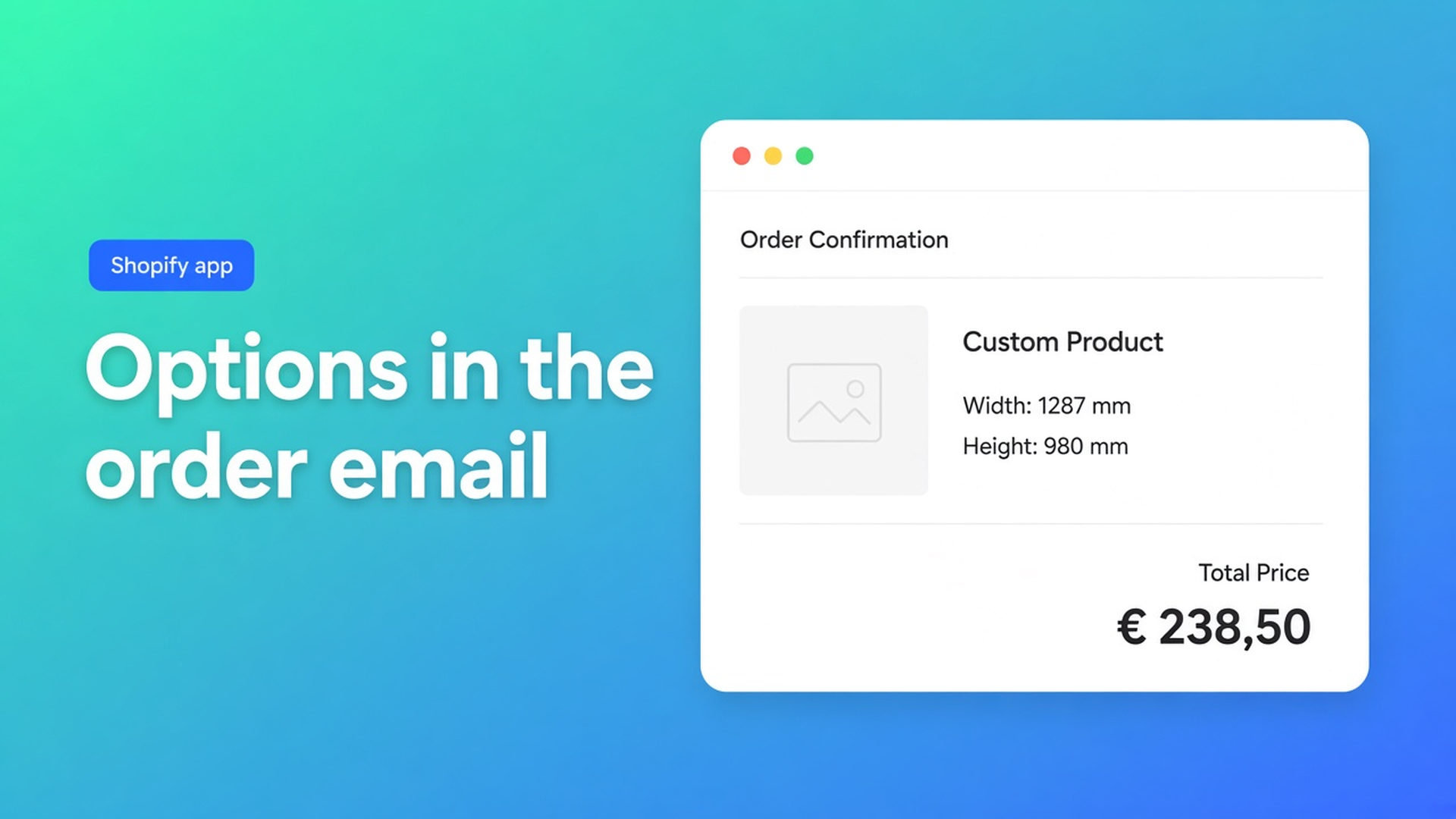
Shopify order email custom options: show measurements in the confirmation
The shopper orders a blind at 1287 × 980 mm, control on the left, fabric Anthracite. Checkout showed those choices. The confirmation that lands in their inbox lists “Anthracite / Aluminium” — the native variant — and nothing else. Fulfilment opens the same mail or a packing slip and has to hunt in the admin for the millimetres. Or the customer replies: “is 1287 mm actually on the order?”
This article covers why extra product choices do not appear in the order confirmation by default, what shops improvise, and how Options Price Calculator stores calculator data on the Shopify order and — with a prepared Liquid template — prints Shopify order email custom options in the message the customer already expects.
We already covered line item properties that do not change the price. That post was about the cart. This one is about the inbox: the same configuration has to reach the customer and the workshop.
The Shopify problem: the email is built around variants
According to Adding variants, a product can have at most three options (for example Size, Color, Material) and at most 2048 variants. The old cap of 100 was raised; the three-option limit was not. Shopify’s own note: to go beyond 2048 variants or three options you need a third-party app, or theme code that collects line item properties for “custom requirements”.
Width in millimetres, engraving copy, a file upload — those are not a fourth variant option. They sit on the line or on order attributes. The default confirmation is built around product title, variant title, quantity and price. Anything outside those fields does not automatically land in the HTML email.
Shopify does send the message: after an order the customer gets a confirmation and you get a notification. That is in the order management docs. You change the body under Settings → Notifications → Order confirmation → Edit code. Until you do, the custom configuration lives in the admin, not in the customer’s inbox.
For made-to-measure shops the product page is self-serve and the email still looks like a simple SKU sale. Support answers “what did I actually buy?”. The workshop cuts from a screenshot.
What merchants try instead
1. Cramming everything into the variant title
“Anthracite / 1287×980 / left” as an option value. That burns your three options and the 2048-variant ceiling, forces rounding, and turns every new millimetre into a SKU. The email then *does* show the text — until the next size needs another variant.
2. Reading the order only in admin
The calculator summary is on the order. Fulfilment logs in and copies measurements onto a cut list. The customer email stays bare. That holds until someone prints a packing slip at the weekend without the admin open.
3. Asking the customer to reply
“Please confirm your sizes by email.” That undoes the calculator: the price was live, payment is captured, and you add a second step. Errors show up there.
None of those paths gives you a live price on the product page and the same configuration in the confirmation, without a variant per millimetre.
How Options Price Calculator handles this
Options Price Calculator is Built for Shopify (5.0 from 25 reviews on the listing). The listing promises unlimited product options (Numbers, Dimensions, Custom text, File upload, Dropdowns, and more) and dynamic pricing without extra variants. Starter $9.99/month: unlimited options, formula builder, metafields, multilingual, AI generation. Premium $14.99/month: + conditional logic, Font Picker, live preview, real-time price breakdown. Free: 20 uses; always free on a Shopify Develop plan. Billed in USD.
Measurements belong in number fields, not in the variant matrix. The variant stays the SKU (fabric, profile, colour). The email then has to print those fields.
Step 1: write calculator data onto the order
General has Order data settings, per calculator:
Include admin summary — a human-readable summary of the inputs on the order attributes. Aimed at admins, fulfilment and customer service.
Include API data — the raw structured values and keys. For APIs, custom fulfilment and automations.
The docs tip is blunt: admin summary for clarity, API data for technical integrations. Turn at least the summary on if people need to read the order in Shopify. Without those toggles there is little for an email template to render.
The settings apply per calculator, not app-wide. A blinds calculator and an engraving calculator are configured separately.
Step 2: edit the confirmation (backup first)
Add product data to order confirmation email leads with a warning: always create a backup. Copy the current template into a text file so you can revert.
Then in Shopify admin:
Settings
Notifications
Open Order confirmation
Edit code in the top-right
You see the HTML/Liquid for the email. OPC ships a ready-made template file with the product data already included. From the docs:
Download the template file.
Open it and copy the entire contents.
Paste into the Order confirmation template (after your backup).
Save.
Do not invent your own Liquid if you can use the prepared file. That download exists so you are not reverse-engineering `line.properties` yourself.
Step 3: place a test order
After saving: place a test order and check that all product data shows in the email. That is the docs’ test. Verify width, height, dropdowns and any text fields — not only the variant title. Send the mail to yourself; print a packing flow next to it if that is how the warehouse works.
You still need the theme app extension on the product page (How to Add the Extension): no storefront fields means nothing to email.
Example: a made-to-measure blind in the inbox
SKUs stay native: fabric colour and hanging system — two of your three options. No “Width” option.
Calculator on Starter:
Number Input `width`, label `Width (mm)`, required, min `400`, max `2500`
Number Input `height`, label `Height (mm)`, required, min `400`, max `2200`
Dropdown `control_side` for left/right (not an extra variant)
Formula, variant price = rate per m²: `product_price * (width / 1000) * (height / 1000)`
(or `product_price + (width * height)` when you follow the per-unit examples in the formula docs)
The shopper picks Anthracite, types 1287 × 980, control on the left. Live price on the page. Order data: admin summary on.
After the template change, the confirmation lists that configuration next to the variant. Fulfilment cuts 1287 × 980, not “Large”. The customer has a record of the millimetres before the roll leaves the shelf.
A size-based surcharge (for example a higher rate above 200 cm) is Premium conditional pricing — do not promise it on Starter. For this email flow Starter is enough: fields, formula, order data, template.
Link the calculator in Linking Products & Variants. One calculator for the blinds line is enough if only `product_price` changes per fabric.
What you need to start
Install Options Price Calculator. Free: 20 uses (always free on Develop). Starter $9.99/month for fields, formulas and order data. Premium $14.99/month if you need conditional logic or live preview.
Add the app block to the product template.
Turn on Include admin summary (and Include API data if you integrate) in General.
Back up the current Order confirmation, then paste the prepared Liquid template and save.
Place a test order and confirm measurements and choices in the email. Turn on server-side price validation so the browser price is not the only check.
Theme bindings (price and Add to cart selectors) exist because themes differ — this is not “works on every theme with no setup”.
Wrap-up
Shopify order email custom options are not a marketing line. They are the configuration the shopper typed, printed where fulfilment and the customer look. Native Shopify stops at three options and 2048 variants; extra fields do not appear in the HTML email on their own.
Put the fields in Options Price Calculator, store the summary on the order, paste the prepared template, and let the next test order show 1287 × 980 mm in the inbox — not only “Anthracite”.

Custom webshops, websites, and applications combined with smart online marketing to help your business grow online!


Reviews
5/5
Mail: info@onlineorigins.nl
Tel: 073 234 0612
KVK: 89825624
BTW: NL865123639B01
Bruistensingel 500,5232 AH 's-Hertogenbosch Cookies
© 2026 Online Origins