
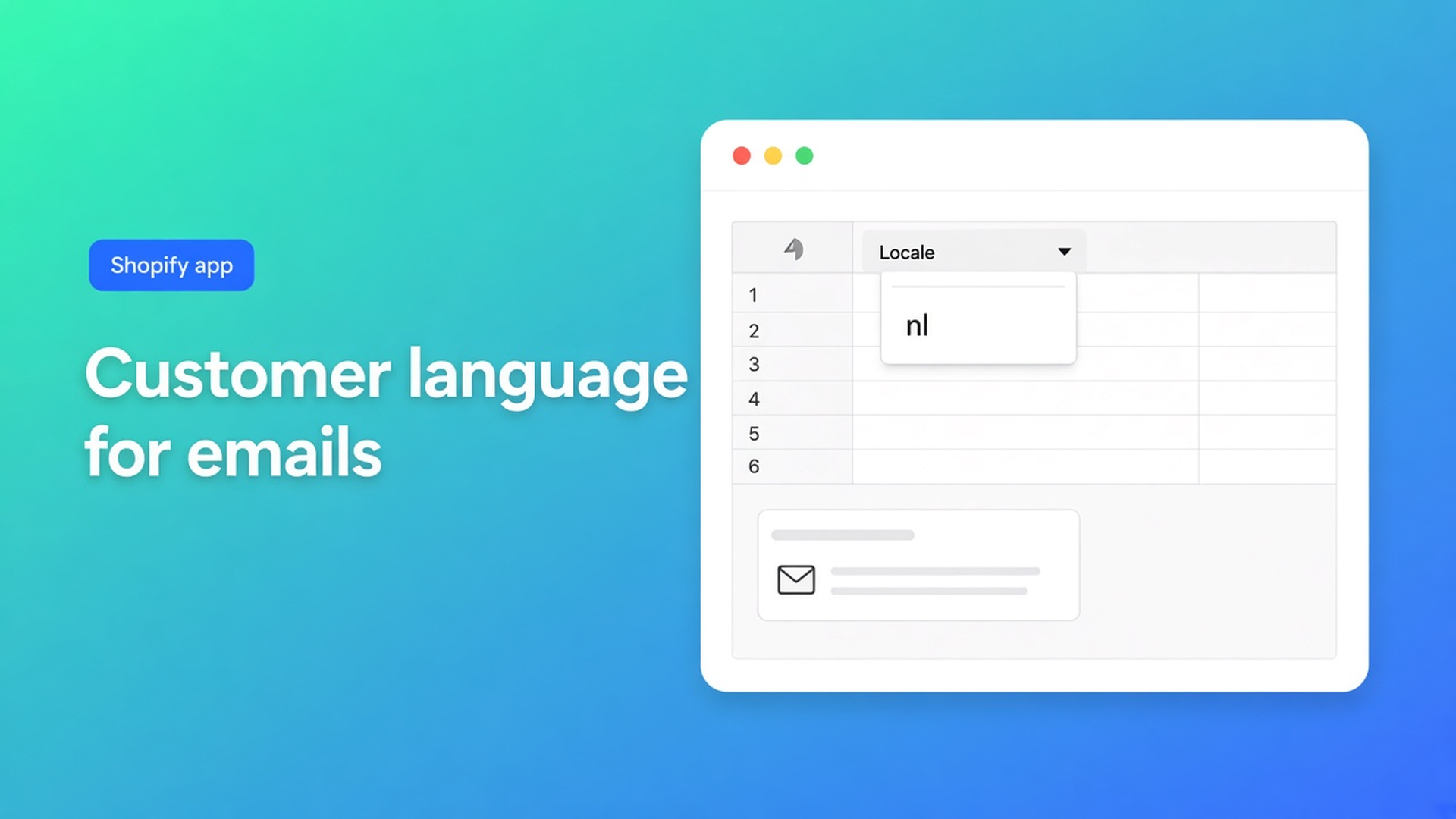
Shopify set customer language for notifications: locale in bulk, not per profile
An English order confirmation to a customer who expects Dutch is not a “wrong template”. Shopify set customer language for notifications means Customer Locale on the profile, plus translations of those emails. Shopify Help Localization and translation puts it this way: if a translation exists, the customer gets notifications in the language they placed the order in — and you can edit the profile to change the language of later emails. Native, that is one profile at a time.
This article is about that second control, at hundreds of accounts: how OO - Bulk Customer Data Editor filters empty or wrong locale and sets `nl` or `en` in one save. We already covered locale in bulk and wrong language after import. Here the inbox is the reason: shipping updates, refunds, account mail.
Locale drives the email, not your theme
You can run a Dutch storefront and still send English order mail. Checkout and email notifications use the published languages on your Markets. If the translation is missing, Shopify falls back to the primary language. If Customer Locale is empty or English (`en`) while the customer expects Dutch (`nl`), the inbox follows that field — even when `/nl` on the storefront looks fine.
Shopify’s standard editor lets you change locale per profile. That is the field the listing calls out as hard to bulk-edit natively, next to tax-exemption status. Tags such as `NL` or `needs-locale` filter accounts; they do not change notification language.
Do not claim the app translates templates. Translate & Adapt (or a CSV) is still required for the mail copy. The app sets the locale field at scale so Shopify actually picks that translation.
What merchants try instead
1. Opening every profile after a ticket
Customers → Language → Save. Fine for five tickets. Not a process when a German market accidentally landed on `en`.
2. “Translating” the default template into Dutch
You rewrite the primary-language mail. English customers then get Dutch. The bug was on the profile, not in a single template.
3. Flow or GraphQL per customer
Community threads show `customerUpdate` with `locale: "nl"`. That is a developer path. No spreadsheet, no “is empty” filter, no select-all matching up to 50,000.
4. CSV export, locale column, re-import without preview
Possible when headers and matching are right. In this app, empty CSV cells do not clear existing values on update — useful when you only want to touch locale. Dangerous if you treat empty as wipe, or if you drag consent along.
None of those routes replace: filter on locale, bulk-apply a valid Shopify locale, Save, spot-check the profile.
How the editor sets locale for mail
OO - Bulk Customer Data Editor is Free (0 reviews, launched 15 September 2026). Listing: spreadsheet editor; bulk-edit Customer Locale and tax-exemption status; filters, views, segments; CSV import/export; store-to-store migration. Works with Excel and Google Sheets via CSV. UI is English; blogs stay NL+EN.
What is Bulk Customer Editor?: a table in admin. Open it from *Start editing* or Customers → More actions → Edit in bulk. Staff need `read_customers` and `write_customers`.
Edit customers in the spreadsheet: the Locale column is a dropdown of every locale Shopify supports, for example Dutch (`nl`) or English (`en`). Not a free-text “dutch”. Other editable fields: name, email, phone, tags, note, tax exempt, consent (per Shopify rules), default address, metafields defined on the shop. Read-only: total spent, order count, created date, and similar. Only changed fields go to Shopify.
Filters run across the whole customer list (with search and segment). Conditions such as “is empty” or “is”. Search (name, email, phone, tags) hits Shopify’s customer search. Locale is matched while scanning results — on a large store pair a search or a segment with the locale filter.
Bulk apply: *Select all matching* up to 50,000; field Locale; value Dutch (`nl`); Apply to selected; staged until Save. Keep the tab open on large saves (FAQ).
Example: EN-default shop, DE market, English shipping mail
Your primary language is English. You have published Dutch and German, with translated order confirmations. After an import, 2,400 German addresses sit on `en` or empty. Shipping updates leave in English.
In Markets, confirm `de` is published and the mail translation exists. Without a translation Shopify falls back to the primary language — locale alone will not fix that.
Open the editor (app or More actions → Edit in bulk).
Filter Locale is empty, or is English (`en`), plus a segment or tag for the German group if you have one.
Select all matching (under 50,000). Bulk apply Locale = German (`de`). Save. Keep the tab open.
Open five profiles: Language should be `de`. Send a test notification or watch the next real email.
A second pass for Dutch (`nl`) on Belgian/Dutch accounts. Do not mix `de` and `nl` in one apply.
Views: save “Locale empty” or “EN but tag DE” so the team repeats the inbox check after the next import. Do not pitch another Online Origins app.
What you need to start
Install OO - Bulk Customer Data Editor (Free).
Publish the languages you want mail in, with translations — Localization and translation.
Open the editor. Filter empty or wrong locale. Bulk apply the right dropdown value. Save.
Spot-check profiles. Failed rows: Shopify’s error, retry the rest (FAQ).
Keep the tab open on large batches. Select-all matching is not an infinite selection.
The app does not make locale “automatically correct” on every Shopify import. It lets you fix the field in bulk afterwards.
Wrap-up
Shopify set customer language for notifications is two layers: translated templates, and Customer Locale on the profile. Native Shopify does that second layer per customer. The listing USP is that field in the spreadsheet, up to 50,000 matching rows per apply.
Set the dropdown in OO - Bulk Customer Data Editor before the next shipping update lands in the wrong inbox language.

The Shopify Select partner for ambitious e-commerce businesses that want to grow!


Services
Reviews
5/5
Mail: info@onlineorigins.nl
Tel: 073 234 0612
KVK: 89825624
BTW: NL865123639B01
Bruistensingel 500,5232 AH 's-Hertogenbosch Cookies
© 2026 Online Origins